Redis is an in-memory database engine based on hash table (key/value) storage (taken from wikipedia).
This article builds the Redis image from a Debian base image; it is based on an article in English on the Docker site (broken link).
To push the image to docker hub, follow the article on using docker on debian jessie part 1.
The previous articles about Docker are:
-
Starting Django with docker using docker-compose with postgresql as a microservice.
-
Creating a Continuous Integration and Deployment environment with Docker for node.js.
-
Setting up a Platform as a Service (PaaS) with Dokku (docker).
-
Provisioning a cluster with docker swarm and docker-machine.
-
Installing Jenkins through Docker and creating a Jenkins Docker image
-
Creating a Docker container as a development environment for Sails.js.
-
Creating JSON data from a dictionary in Flask (part 1) (update - Docker)
The Dockerfile will contain the following:
#Se usa debian como imagen base
FROM debian
#Se define el mantenedor de la imagen
MAINTAINER Ernesto Crespo <ecrespo@gmail.com>
#Se actualiza la lista de paquetes
RUN apt-get update
#Se instala redis-server y redis-tools
RUN apt-get install -y redis-server redis-tools
#Se limpia la cache de paquetes deb
RUN apt-get clean

#Se expone el puerto 6379
EXPOSE      6379
#Inicio del servicio redis
ENTRYPOINT  ["/usr/bin/redis-server"]
Now build the image (tying it to my docker hub account):
docker build -t ecrespo/redis .List the images:
docker images
REPOSITORY          TAG                 IMAGE ID            CREATED             SIZE
ecrespo/redis       latest              841b6e9266f8        3 minutes ago       136.9 MB
redis               latest              4465e4bcad80        4 weeks ago         185.7 MB
debian              latest              1b088884749b        5 weeks ago         125.1 MB
Run the service by executing:
docker run --name redis -d --restart always -p 6379:6379 ecrespo/redis Listing the processes shows redis running:
docker ps
CONTAINER ID        IMAGE               COMMAND                  CREATED             STATUS              PORTS                    NAMES
0af1cdf134d7        ecrespo/redis       "/usr/bin/redis-serve"   9 seconds ago       Up 4 seconds        0.0.0.0:6379->6379/tcp   redis
To test redis, install redis-tools on the computer:
#apt-get install redis-toolsFrom the command line run redis-cli; a figure of the example is shown below:
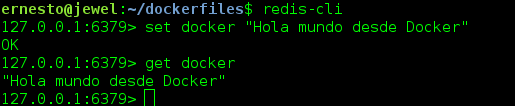
Make a commit of the running redis container:
docker commit 0af1cdf134d7 ecrespo/redisThen push it to docker hub:
docker push ecrespo/redisNow a container for the application will be created, linking the redis container with the client container:
docker run --link redis:db -i -t debian /bin/bashInside the container run the following commands:
apt-get update
apt-get install redis-tools
service redis-server stop
Since the current container was linked with the redis container, it contains some environment variables; to view them run the following command:
env | grep DB_
DB_NAME=/tiny_poincare/db
DB_PORT_6379_TCP_PORT=6379
DB_PORT=tcp://172.17.0.2:6379
DB_PORT_6379_TCP=tcp://172.17.0.2:6379
DB_PORT_6379_TCP_ADDR=172.17.0.2
DB_PORT_6379_TCP_PROTO=tcp
To connect from the container running Debian to the redis one, run:
redis-cli -h $DB_PORT_6379_TCP_ADDR
172.17.0.2:6379> set docker "Conectandose desde un contenedor debian al contenedor redis"
OK
172.17.0.2:6379> get docker
"Conectandose desde un contenedor debian al contenedor redis"
172.17.0.2:6379>
A figure of the execution is shown below:

And the running containers are listed:

Make a donation! If you liked the article you can make a donation with Bitcoin (BTC) using the digital wallet of your choice to the following address: 17MtNybhdkA9GV3UNS6BTwPcuhjXoPrSzV
Or by scanning the QR code from the wallet: