Jupyter Notebook is a web application that lets you create and share documents that contain code, plots and text. Its uses include data cleaning and transformation, numerical simulation, statistical modeling, machine learning and much more. You can find more information at this link.
The idea is to run jupyter notebook from a docker container, where the generated files will be saved in the directory defined through a volume.
The previous articles on docker are:
-
Starting Django with docker using docker-compose with postgresql as a microservice.
-
Creating a Continuous Integration and Deployment environment with Docker for node.js.
There are several Docker images from the jupyter team; the one that will be used is the jupyter notebook (broken link) one.
To run the container we run the following commands:
$docker run --rm -it -p 8888:8888 -v "$(pwd):/notebooks" jupyter/notebookRunning the command gives what the following image shows:
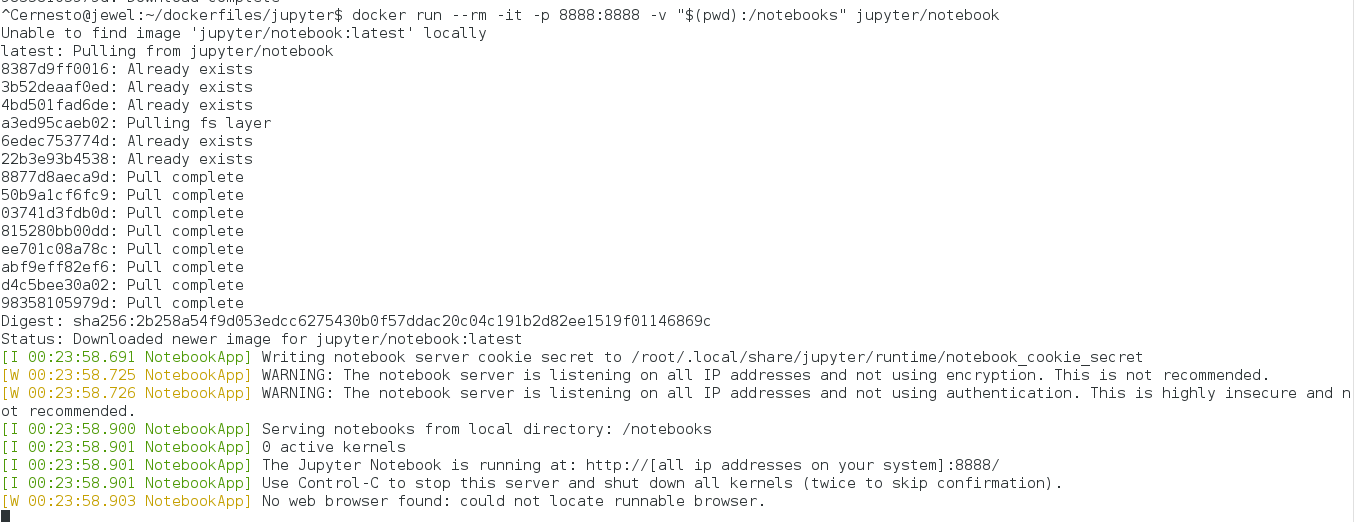
The port outside the container will be 8888, the same as the internal one; the volume is taken from the directory where the previous command is run.
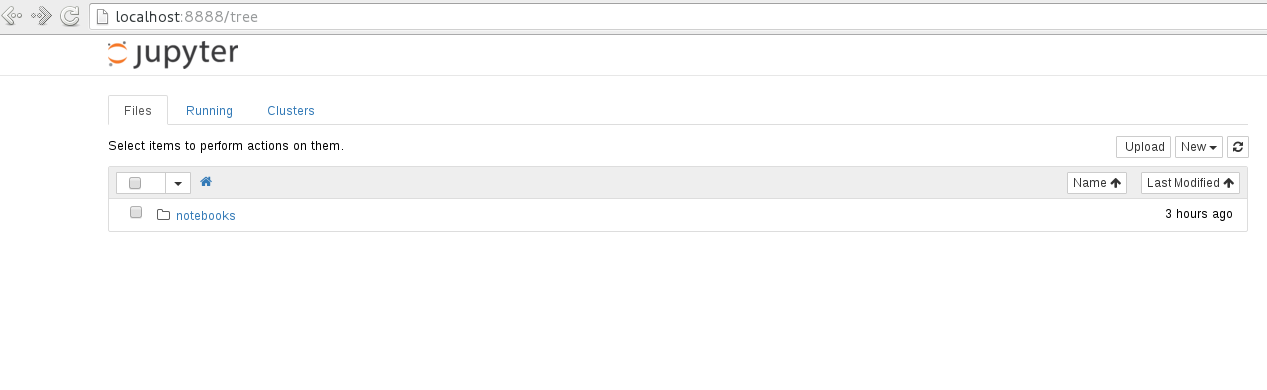
From a browser, open the following link: http://localhost:8888/ .
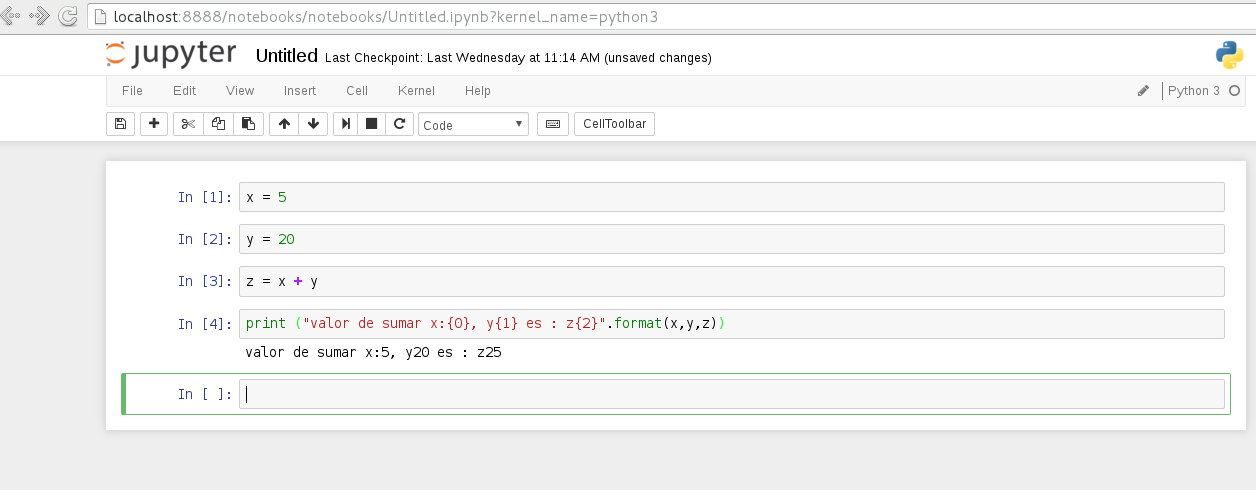
A document is created with a series of python instructions and saved with the name prueba-python:
Running ls -l in the directory where the container was started shows the file prueba-python.ipynb:
 ls -l notebooks/
total 4
-rw-r--r-- 1 root root 1390 mar 26 20:04 prueba-python.ipynb
With the volume option, the container's notebooks directory is being shared on the host machine.
Make a donation! If you liked the article you can make a donation with Bitcoin (BTC) using the digital wallet of your choice to the following address: 17MtNybhdkA9GV3UNS6BTwPcuhjXoPrSzV
Or by scanning the QR code from your wallet: