The previous docker articles are the following:
- Installing Docker on Debian Jessie
- Using Docker on Debian Jessie (part 1)
- Using Docker on Debian Jessie (part 2)
- Creating a Docker image with a Dockerfile
- Starting Django using Docker
The first article on using Docker on Debian Jessie shows at the end how to use SonarQube through Docker with two instances of the same image.
This article downloads the Gitlab community edition Docker image. The site where it is hosted is at the following link and the English documentation this article is based on is at the following link.
The gitlab-ce that will be downloaded from the dockerhub site will be run. The command is the following:
docker run --detach --hostname pruebasgitlab --publish 443:443 --publish 80:80 --publish 22:22 --name gitlab --restart always --volume /srv/gitlab/config:/etc/gitlab --volume /srv/gitlab/logs:/var/log/gitlab --volume /srv/gitlab/data:/var/opt/gitlab gitlab/gitlab-ce:latest- hostname: The host name is pruebasgitlab.
- publish: publishes ports 443, 80 and 22 of the container instance.
- name: The name of the image is gitlab.
- restart always: Always brings the instance back up.
- volume: Some volumes are defined (they are directories of the host machine that are mounted in the containers); in this case there are 3 directories.
- gitlab/gitlab-ce:latest: Fetches the latest version of the gitlab-ce image.
The Gitlab container uses mounted volumes for persistent data:
/srv/gitlab/datais mounted on/var/opt/gitlab/srv/gitlab/logsis mounted on/var/log/gitlab/srv/gitlab/configis mounted on/etc/gitlab
To configure Gitlab there is a file on the host at /etc/gitlab/gitlab.rb.
To access the configuration you can start bash in the running container, which lets you browse the directory structure and run any program:
docker exec -it gitlab /bin/bashNow you can edit the /etc/gitlab/gitlab.rb file .
It can also be edited with the following command:
docker exec -it gitlab vi /etc/gitlab/gitla.rbTo enable https settings you can check the following link, or the smtp settings at this other one.
To restart gitlab after changing the settings, run:
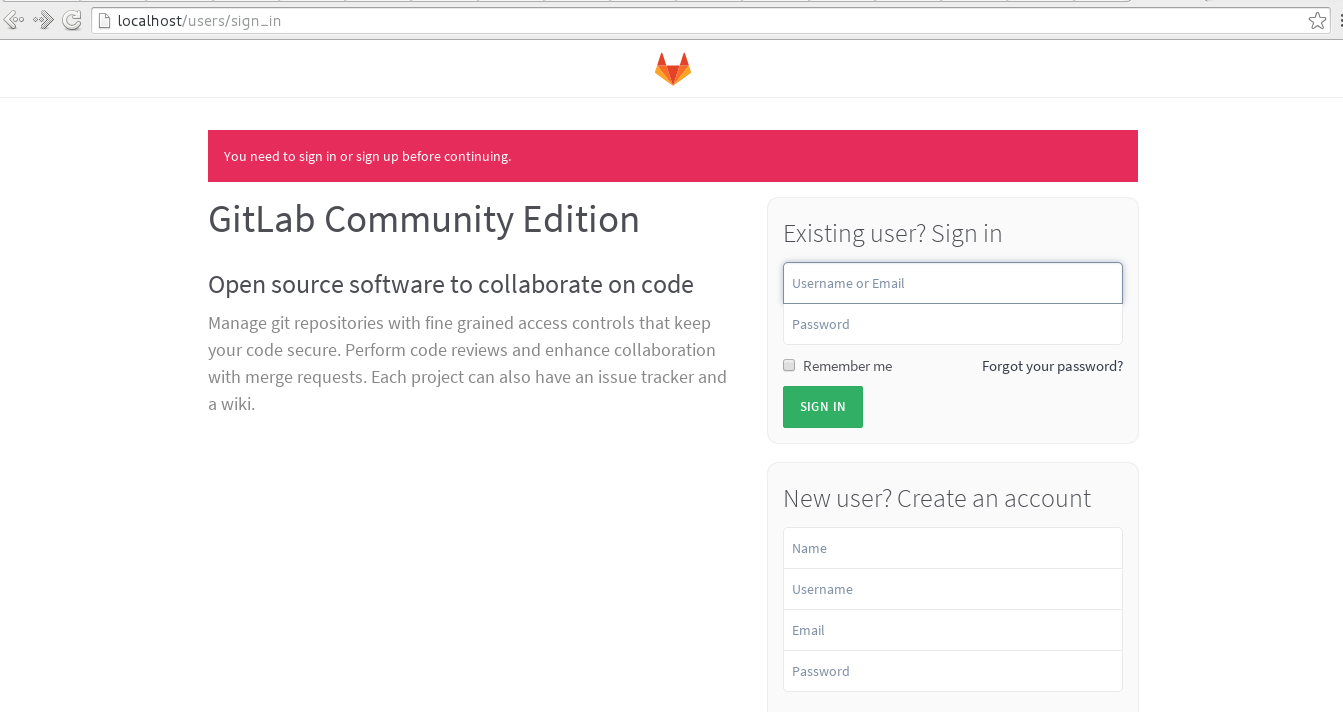
doker restart gitlabA screenshot of gitlab running from Docker is shown below:
This article shows how to access several ports such as 80, 443 and 22, which allows connecting to that container remotely.
Make a donation! If you liked the article you can make a donation with Bitcoin (BTC) using the digital wallet of your choice to the following address: 17MtNybhdkA9GV3UNS6BTwPcuhjXoPrSzV
Or by scanning the QR code from the wallet: