The previous articles about docker are:
This article explains how to keep an instance running, how to start instances automatically, how to access the services running in the container, and how to run the image from different machines by registering the container.
From the previous article there are 2 images on the machine, one of Debian and the other created by me, which comes from the docker hub repository:
$ docker images
REPOSITORY                  TAG                 IMAGE ID            CREATED             VIRTUAL SIZE
ecrespo/empaquetadodebian   latest              ee5883957d64        18 hours ago        656.9 MB
debian                      latest              8b9a99209d5c        3 weeks ago         125.1 MB
To run apache in the foreground from the image that was built, use the -D option, and -d so that it runs detached.
$docker run -d   ecrespo/empaquetadodebian /usr/sbin/apache2ctl -D FOREGROUND
eeb8041b4331e572b3e452fc00da5d364115ba8a08ad015aa05eb1d243a1bf4b
As you can see, it returns a hash. Now check the docker processes and you will see the container with apachectl running:
$ docker ps
CONTAINER ID        IMAGE                       COMMAND                  CREATED             STATUS              PORTS               NAMES
eeb8041b4331        ecrespo/empaquetadodebian   "/usr/sbin/apache2ctl"   4 minutes ago       Up 4 minutes                            tender_goodall
To stop a process, take the container id and run docker stop:
$ docker stop eeb8041b4331
eeb8041b4331
Listing the processes again shows that there are no containers running anymore:
$ docker ps
CONTAINER ID        IMAGE               COMMAND             CREATED             STATUS              PORTS               NAMES

$ docker run -d -p 80:80 ecrespo/empaquetadodebian /usr/sbin/apache2ctl -D FOREGROUND
8c7d49ac2e671e0f7dd1bbfb038f5a23ff06e3120d07d059c0cde99dc76f1a79
Listing the processes again shows the container running apache2ctl on port 80:
$ docker ps
CONTAINER ID        IMAGE                       COMMAND                  CREATED             STATUS              PORTS                NAMES
8c7d49ac2e67        ecrespo/empaquetadodebian   "/usr/sbin/apache2ctl"   51 seconds ago      Up 45 seconds       0.0.0.0:80->80/tcp   stupefied_darwin
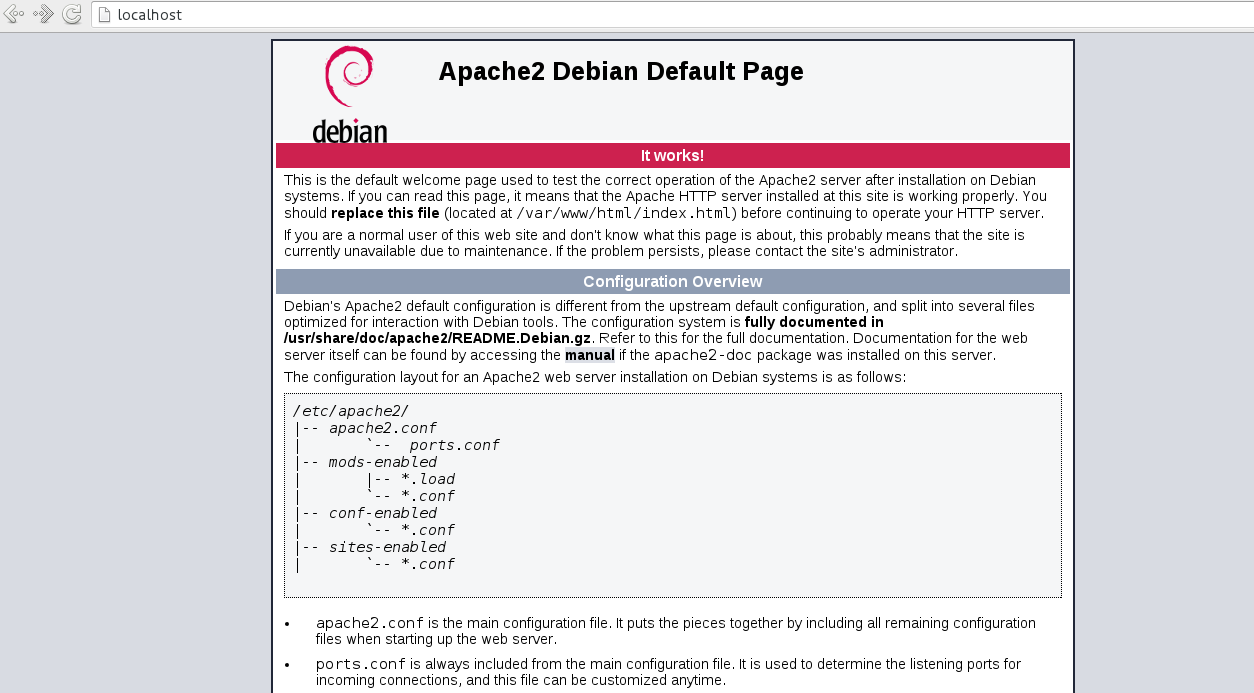
Next, open the browser at localhost (note that the apache service must be turned off on the machine) and you will see apache running as shown below:
The image is uploaded to the repositories with the docker push command:
$ docker push ecrespo/empaquetadodebian
The push refers to a repository [docker.io/ecrespo/empaquetadodebian] (len: 1)
ee5883957d64: Pushed
8b9a99209d5c: Pushed
6d1ae97ee388: Pushed
latest: digest: sha256:893cb08536430d5555434bb4b120fb54e9f21da7cd87325120c1698aa57e2882 size: 4009
You can also try an application such as sonarqube, a web application that measures software quality. You can find the image on the sonarqube docker hub page.
sonarqube can be run with ports 9000 and 9092 as follows:
$ docker run -d --name sonarqube -p 9000:9000 -p 9092:9092 sonarqubeWhen the download finishes, run docker images and you will see that the sonarqube image is there:
$ docker images
REPOSITORY                  TAG                 IMAGE ID            CREATED             VIRTUAL SIZE
ecrespo/empaquetadodebian   latest              ee5883957d64        23 hours ago        656.9 MB
debian                      latest              8b9a99209d5c        3 weeks ago         125.1 MB
sonarqube                   latest              dd47274097f7        7 weeks ago         942.5 MB
Check the containers:
$ docker ps
CONTAINER ID        IMAGE                       COMMAND                  CREATED             STATUS              PORTS                                            NAMES
f44317723253        sonarqube                   "./bin/run.sh"           8 minutes ago       Up 7 minutes        0.0.0.0:9000->9000/tcp, 0.0.0.0:9092->9092/tcp   sonarqube
8c7d49ac2e67        ecrespo/empaquetadodebian   "/usr/sbin/apache2ctl"   3 hours ago         Up 3 hours          0.0.0.0:80->80/tcp                               stupefied_darwin
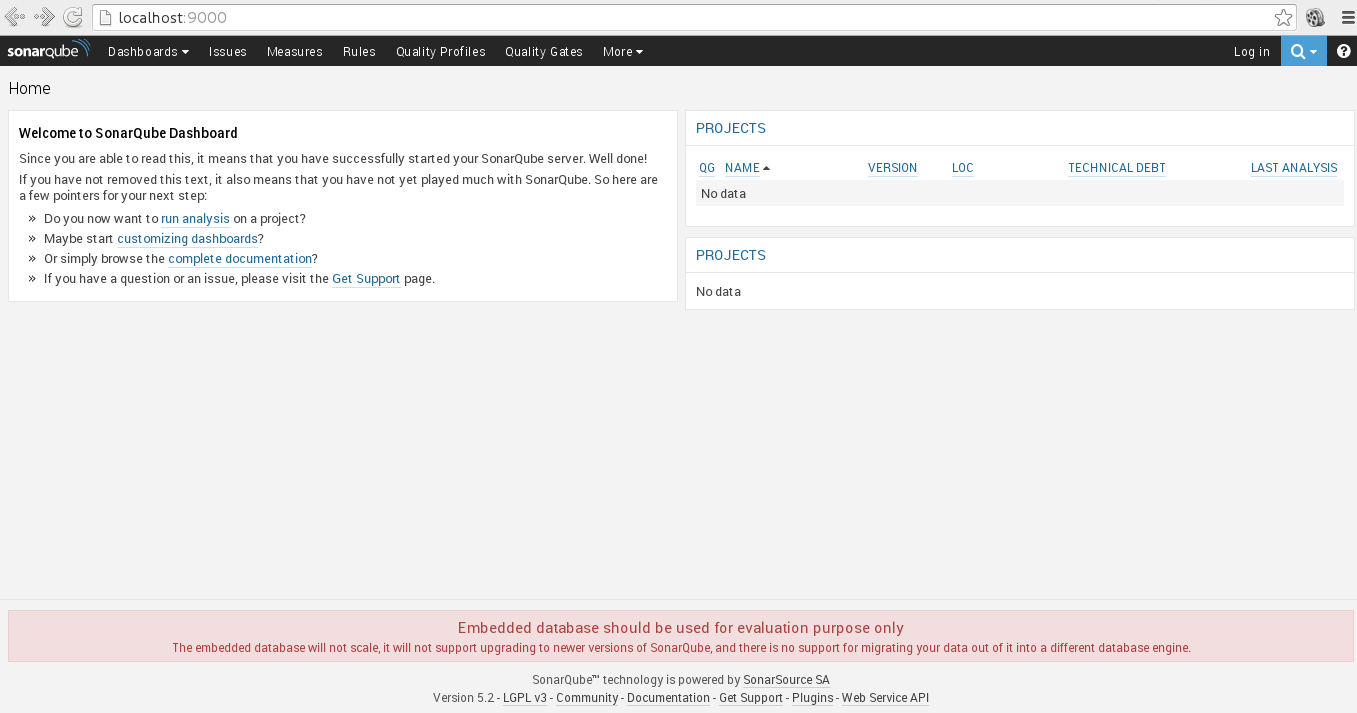
sonarqube is running on port 9000; opening the browser at localhost:9000 shows the following:
Stop the sonarqube container:
$ docker stop f44317723253
f44317723253
Check the processes and sonarqube no longer appears:
$ docker ps
CONTAINER ID        IMAGE                       COMMAND                  CREATED             STATUS              PORTS                NAMES
8c7d49ac2e67        ecrespo/empaquetadodebian   "/usr/sbin/apache2ctl"   3 hours ago         Up 3 hours          0.0.0.0:80->80/tcp   stupefied_darwin
If you want to start sonarqube again, run docker start with the container id:
$ docker start f44317723253
f44317723253
List again:
$ docker ps
CONTAINER ID        IMAGE                       COMMAND                  CREATED             STATUS              PORTS                                            NAMES
f44317723253        sonarqube                   "./bin/run.sh"           22 minutes ago      Up About a minute   0.0.0.0:9000->9000/tcp, 0.0.0.0:9092->9092/tcp   sonarqube
8c7d49ac2e67        ecrespo/empaquetadodebian   "/usr/sbin/apache2ctl"   3 hours ago         Up 3 hours          0.0.0.0:80->80/tcp                               stupefied_darwin
Note that sonarqube comes back up with the ports already defined.
The next article will explain how to build an image by means of the dockerfile.
References:
Make a donation! If you liked the article you can make a donation with Bitcoin (BTC) using the digital wallet of your choice at the following address: 17MtNybhdkA9GV3UNS6BTwPcuhjXoPrSzV
Or by scanning the QR code from your wallet: