The previous articles about docker are:
- Install Docker on Debian Jessie
- Using Docker on Debian Jessie (part 1)
- Using Docker on Debian Jessie (part 2)
This article shows how to build a Docker image from a file called Dockerfile.
A Debian image will be used as the base, and from there we will have one with apache running; in the /var/www/html directory there will be an index.html file with two html headings showing that apache is running through docker.
The first thing to do is create the Dockerfile in a directory, for example dockerbuilds; the file will contain the following:
FROM debian
MAINTAINER Ernesto Crespo
RUN apt-get update
RUN apt-get install apache2 -y --force-yes
RUN echo "<h1>Apache con docker</h1> <h2>Prueba hecha por Seraph1</h2>" > /var/www/html/index.html
EXPOSE 80
ENTRYPOINT apache2ctl -D FOREGROUND
Description of the file:
- FROM: The first thing defined is the image to use, in this case Debian.
- MAINTAINER: The name of the image maintainer.
- RUN: Instruction that allows running commands inside the container. In this case the Debian package list is updated, apache is installed and the content of index.html is copied to its corresponding path.
- Port 80 of the apache server is exposed.
- It indicates that apache should run in the foreground every time the container starts.
Once the file is ready, run the command to create the image using that file:
docker build -t ecrespo/apache .This defines the image name as ecrespo/apache.
When the build process finishes, the image will be on the machine:
$docker images
REPOSITORY                                      TAG                 IMAGE ID            CREATED              VIRTUAL SIZE
ecrespo/apache                                  latest              ae0d4610be9d        About a minute ago   197.8 MB
debian-django                                   latest              36896e115e32        2 weeks ago          601.1 MB
ecrespo/empaquetadodebian                       latest              ee5883957d64        2 weeks ago          656.9 MB
debian                                          latest              8b9a99209d5c        6 weeks ago          125.1 MB
sonarqube                                       latest              dd47274097f7        10 weeks ago         942.5 MB
debian                                          8.1                 f05335696a9b        4 months ago         125.2 MB
The image is 197.8MB.
Finally, run the image called ecrespo/apache; the instance will be called apache1, it takes local port 80 and exposes it on the machine as port 90.
docker run --name apache1 -d -p 90:80 ecrespo/apacheList the docker processes and the apache container is running:
$docker ps
CONTAINER ID        IMAGE               COMMAND                  CREATED             STATUS              PORTS                NAMES
0195ebf31328        ecrespo/apache      "/bin/sh -c 'apache2c"   44 minutes ago      Up 44 minutes       0.0.0.0:90->80/tcp   apache1
The name is ecrespo/apache, the command that runs is apachectl, it was created 44 minutes ago and has been up for 44 minutes, the instance name is apache1 and it redirects port 90 to port 80.
With docker stats, passing the container id, you can get resource consumption information for that container.

Now open the browser at localhost:90 and you will see the message shown in the following figure:
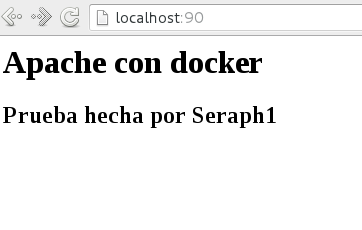
To stop the container, run docker stop with the container id:
$ docker stop 0195ebf31328
0195ebf31328
When listing the processes you can see that the apache1 container is no longer running.
$ docker ps
CONTAINER ID        IMAGE               COMMAND             CREATED             STATUS              PORTS               NAMES
This article shows a small customization of apache; little by little the level of container customization will increase in order to have real services running.
Make a donation! If you liked the article you can make a donation with Bitcoin (BTC) using the digital wallet of your choice to the following address: 17MtNybhdkA9GV3UNS6BTwPcuhjXoPrSzV
Or by scanning the QR code from the wallet: