Continuing with the Docker articles, this time I show how to set up a continuous integration (CI) and continuous deployment (CD) environment with Docker for a web application with node.js.
The previous articles about Docker are:
- Install Docker on Debian Jessie
- Using Docker on Debian Jessie (part 1)
- Using Docker on Debian Jessie (part 2)
- Create a Docker image from a Dockerfile
- Starting Django using Docker
- Install Gitlab using Docker
- Running microservices with docker using docker-compose
- Docker in Docker (DinD)
- Starting Django with docker using docker-compose with postgresql as a microservice.
- Import a Docker container in Python.
- Share Docker images using tar files.
- Create a private Docker image registry.
- Use Anaconda from a Docker container.
I created a directory called nodejs that will contain the following:
nodejs
├── app.js
├── Dockerfile
└── package.json
Inside the directory there is the javascript file called app.js, the Dockerfile file and the package.json file.
The app.js file contains the following:
// se crea la instancia de http
var http = require('http');
// Se crea la instancia del servidor donde se define el tipo del Content-type como text/plain
//Devuelve un hola mundo particular.
var server = http.createServer(function (request, response) {
        response.writeHead(200, {"Content-Type": "text/plain"});
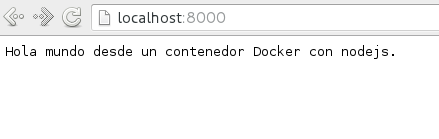
        response.end("Hola mundo desde un contenedor Docker con nodejs.");
});
//El servidor escuchará el puerto 8000.
server.listen(8000);
//se devuelve un mensaje en la consola que se ejecuta el servidor web.
console.log("Server running at http://127.0.0.1:8000/");
The package.json file contains the following:
{
    "name": "hola-mundo",
    "description": "hola mundo",
    "version": "0.0.1",
    "private": true,
    "dependencies": {
        "express": "3.x"

    },
    "scripts": {"start": "node app.js"}

}
It gives the application's name, its description, the version, marks it as private, installs express version 3.x in the dependencies, and finally the script starts the app.js application.
Now the Dockerfile file will be explained:
FROM google/nodejs
MAINTAINER Ernesto Crespo <ecrespo@gmail.com>
WORKDIR /app
ADD package.json /app/
RUN npm install
ADD . /app
EXPOSE 8000
CMD []
ENTRYPOINT ["/nodejs/bin/npm", "start"]
nodejs is downloaded from the repository maintained by google, the image maintainer is defined, the working directory is /app, the package.json file is added to the working directory, npm install is run, the app directory found in the directory structure already explained is added, port 8000 is exposed, CMD is given [] and the entrypoint starts npm. .
To build the image, run:
docker build -t nodejs_img .Running docker images shows the nodejs_img image:
docker images
REPOSITORY                    TAG                 IMAGE ID            CREATED              SIZE
nodejs_img                    latest              38d1802c8726        About a minute ago   501.6 MB
Now run the container:
docker run -p 8000:8000 nodejs_img

> hola-mundo@0.0.1 start /app
> node app.js

Server running at http://127.0.0.1:8000/
Opening the browser at that address shows:
You can modify the app.js file by adding the following:
var http = require('http');
var server = http.createServer(function (request, response) {
        response.writeHead(200, {"Content-Type": "text/plain"});
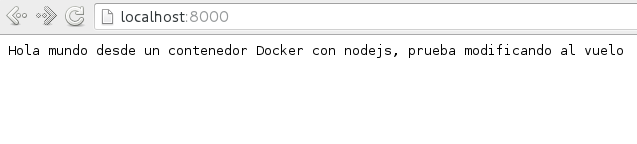
        response.end("Hola mundo desde un contenedor Docker con nodejs, prueba modificando al vuelo");
});

server.listen(8000);

console.log("Server running at http://127.0.0.1:8000/");
Stop the container and run it again:
docker ps
CONTAINER ID        IMAGE               COMMAND                  CREATED             STATUS              PORTS                    NAMES
ee8395c6c1b0        nodejs_img          "/nodejs/bin/npm star"   4 minutes ago       Up 4 minutes        0.0.0.0:8000->8000/tcp   clever_shirley

docker stop ee8395c6c1b0
ee8395c6c1b0
For the changes in the app.js file to be reflected, rebuild the docker image and then start the container again:
docker build -t nodejs_img .
docker run -p 8000:8000 -v "$PWD":/app nodejs_img

> hola-mundo@0.0.1 start /app
> node app.js


Server running at http://127.0.0.1:8000/
And when opening the browser at the url:
You can create scripts to stop, delete and rebuild the images, making the continuous integration and continuous deployment process easier.
You can find more information in the article: Docker in running integration tests in NodeJS
Make a donation! If you liked the article you can make a donation with Bitcoin (BTC) using the digital wallet of your choice to the following address: 17MtNybhdkA9GV3UNS6BTwPcuhjXoPrSzV
Or by scanning the QR code from your wallet: