Docker UI is a web interface that lets you manage Docker images and run containers.
The installation and use of dockerui will be explained.
This article is based on an English article that you can check at the following link.
-
Starting Django with docker using docker-compose with postgresql as a microservice.
-
Creating a continuous Integration and Deployment environment with Docker for node.js.
-
Setting up a Platform as a Service (PaaS) with Dokku (docker).
-
Provisioning a cluster with docker swarm and docker-machine.
-
Installing Jenkins through Docker and creating a Jenkins Docker image
-
Creating a Docker container as a development environment for Sails.js.
The installation process for Debian Jessie can be found in the first article, but if you use another distribution you can read the English link on which this article is based, which explains the installation for Fedora and other distros.
DockerUI can be downloaded as a Docker image; to run the container, execute the following command:
docker run -d -p 9000:9000 --privileged -v /var/run/docker.sock:/var/run/docker.sock dockerui/dockeruiNote: The repository is on Docker Hub; another dockerui repository was used.
docker run -d -p 9000:9000 --privileged -v /var/run/docker.sock:/var/run/docker.sock abh1nav/dockeruiThe web application runs on port 9000, is given all privileges, and accesses the docker socket running on the host machine.
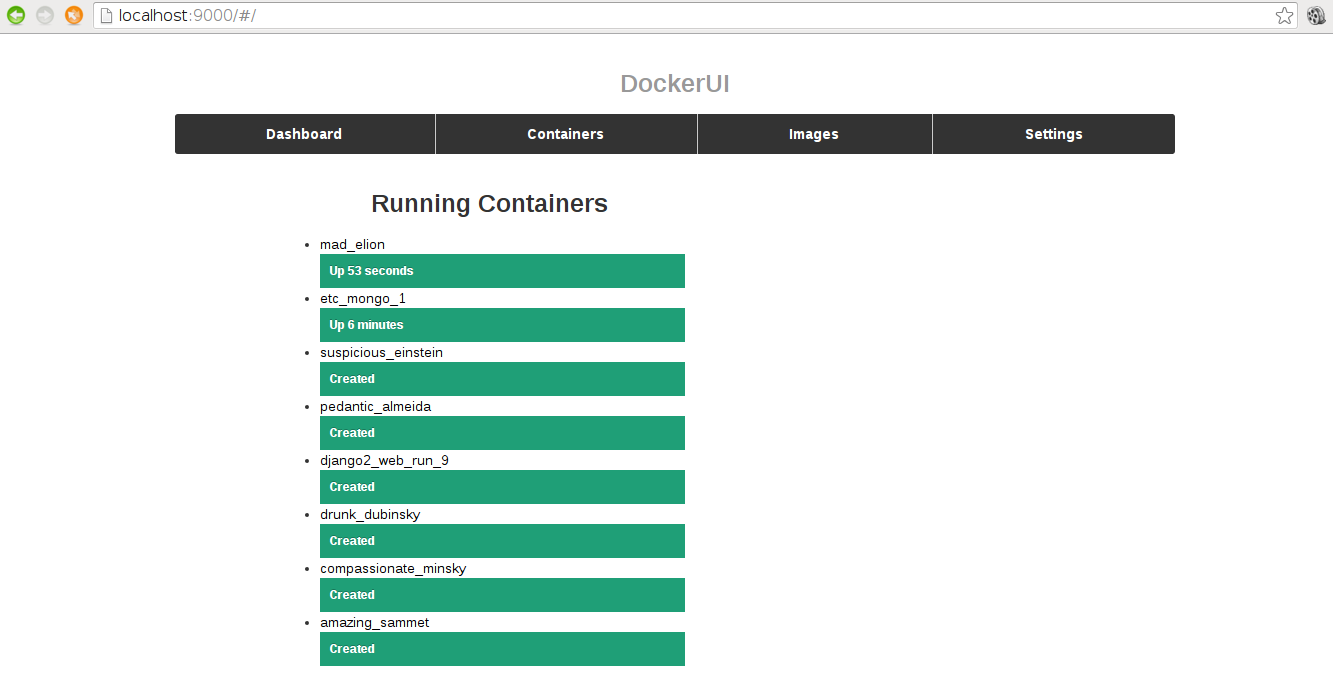
The main page of dockerui is shown below:
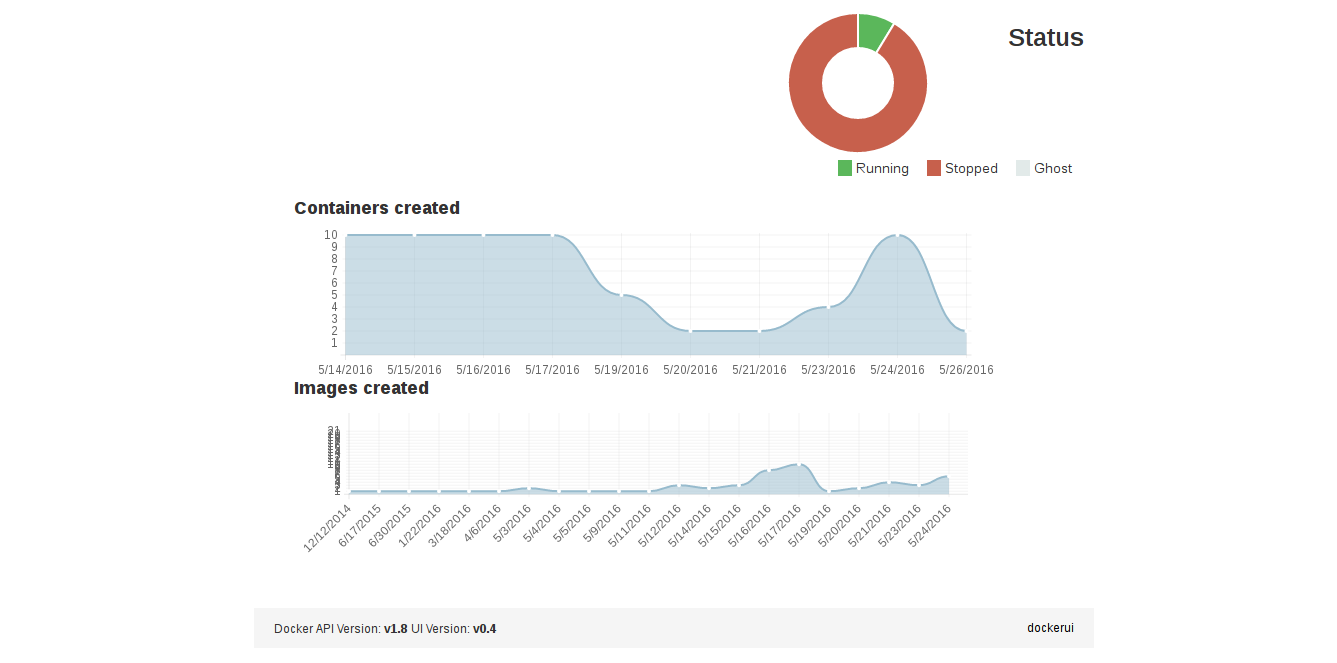
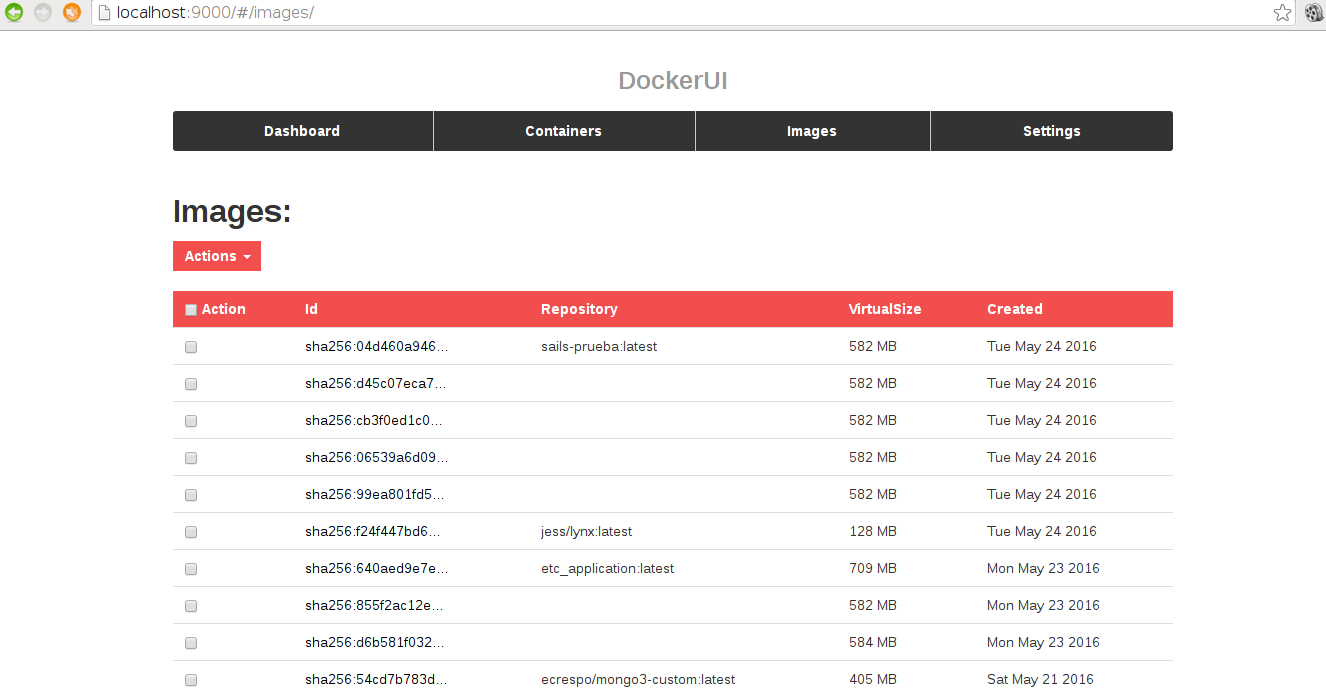
The images section lists all the images on the machine, and images can be removed from there:
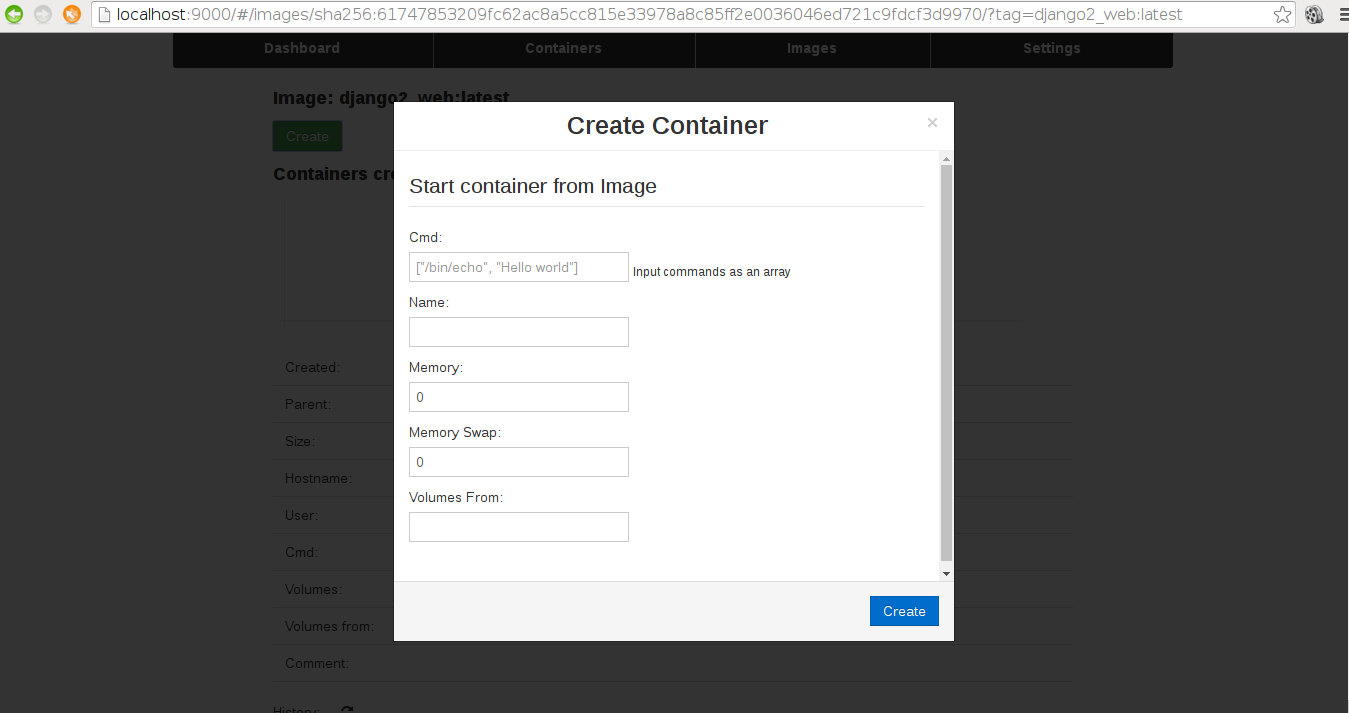
Clicking on an image makes the create button appear:
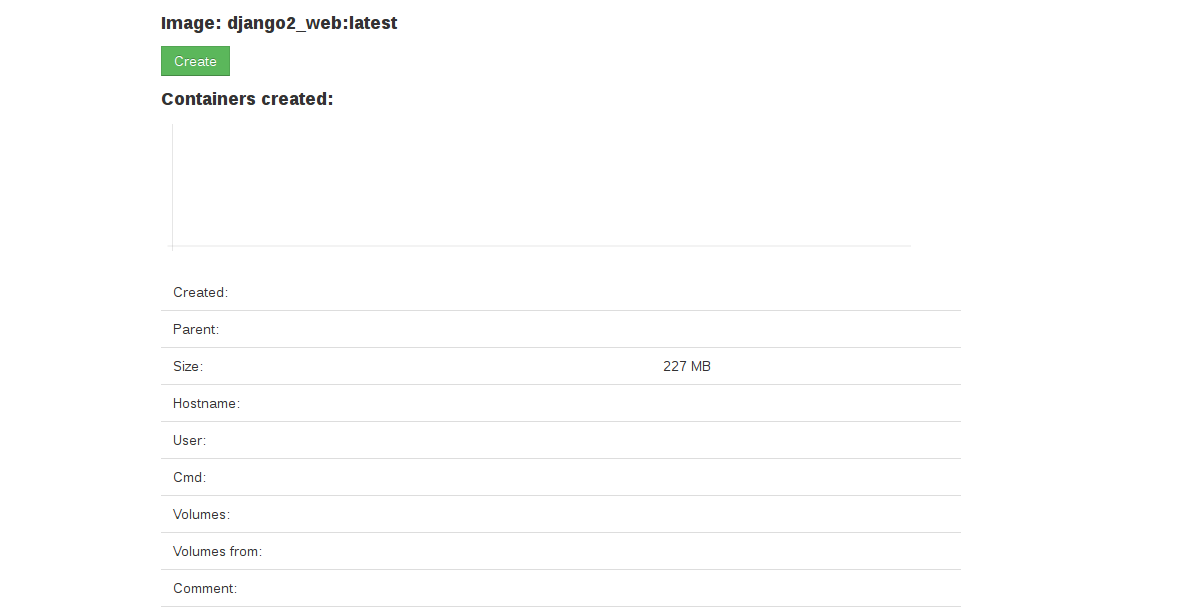
Then a window appears where you define the command to run, the container name, how much memory and swap memory it will use, and the volume:
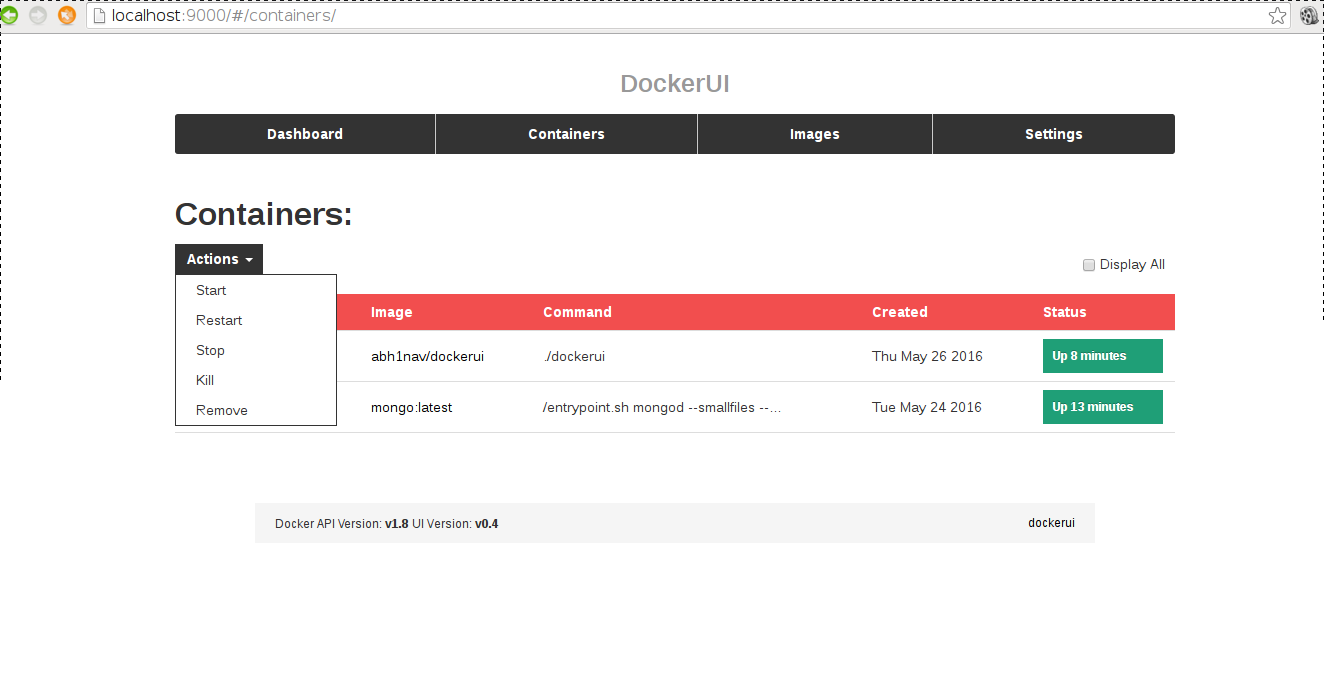
In the containers section you can start, restart, stop, kill or remove containers:
Make a donation! If you liked the article you can make a donation with Bitcoin (BTC) using the digital wallet of your choice to the following address: 17MtNybhdkA9GV3UNS6BTwPcuhjXoPrSzV
Or by scanning the QR code from your wallet: