As in the gitlab article, I will now explain the installation of Jenkins; the difference is that besides the procedure using a Docker image, we will create our own Jenkins image.
The previous articles about Docker are:
-
Running microservices with docker using docker-compose (broken link)
-
Starting Django with docker using docker-compose with postgresql as a microservice. (broken link)
-
Create a Continuous Integration and Deployment environment with Docker for node.js.
-
Run a unittest test in Python with a Docker container. (broken link)
-
Set up a Platform as a Service (PaaS) with Dokku (docker) (broken link).
-
Provision a cluster with docker swarm and docker-machine. (broken link)
This article is partly based on the procedure from the official Jenkins repository on Docker Hub.
Basically, to install jenkins from the official Docker image you run:
docker run -p 8080:8080 -p 50000:50000 jenkinsBut in this case we are going to use a Dockerfile file where maven2, openjdk, docker, ant and jenkins will be installed, in order to have enough support for the plugins that jenkins comes with.
The Dockerfile file is the following:
FROM debian
MAINTAINER Ernesto Crespo <ecrespo@gmail.com>
RUN apt-get update
RUN apt-get install -y apt-transport-https
RUN apt-get install -y git
RUN apt-get install -y openssh-server openssh-client
RUN apt-get install -y openjdk-7-jdk maven2 ant
RUN apt-key adv --keyserver hkp://p80.pool.sks-keyservers.net:80 --recv-keys  58118E89F3A912897C070ADBF76221572C52609D
RUN sh -c 'echo "deb https://apt.dockerproject.org/repo debian-jessie main" > /etc/apt/sources.list.d/docker.list'
RUN apt-get install -y wget
RUN wget -q -O - https://jenkins-ci.org/debian/jenkins-ci.org.key | apt-key add -
RUN sh -c 'echo deb http://pkg.jenkins-ci.org/debian binary/ > /etc/apt/sources.list.d/jenkins.list'
RUN apt-get update
RUN apt-get install -y docker-engine
RUN apt-get install -y jenkins
RUN apt-get install -y vim less locate
RUN sh -c 'service docker start'
RUN sh -c 'service jenkins start'
RUN apt-get clean
EXPOSE 8080 50000 22
ENTRYPOINT ["java","-jar","/usr/share/jenkins/jenkins.war"]
CMD [""]
As you can see, a Debian image is used and everything needed to have jenkins is installed on it, along with some additional tools such as Docker, maven2, ant and jenkins.
To build the image, run:
docker build -t docker-jenkins . This generates the image as shown below:
docker images
REPOSITORY             TAG                 IMAGE ID            CREATED             SIZE
docker-jenkins         latest              844985a7b6ad        54 minutes ago      855.3 MB
To create the container, run:
docker run -p 8080:8080 -p 50000:50000 -p 8022:22 -P -d docker-jenkinsOpening the browser at localhost:8080 gives the following figure:
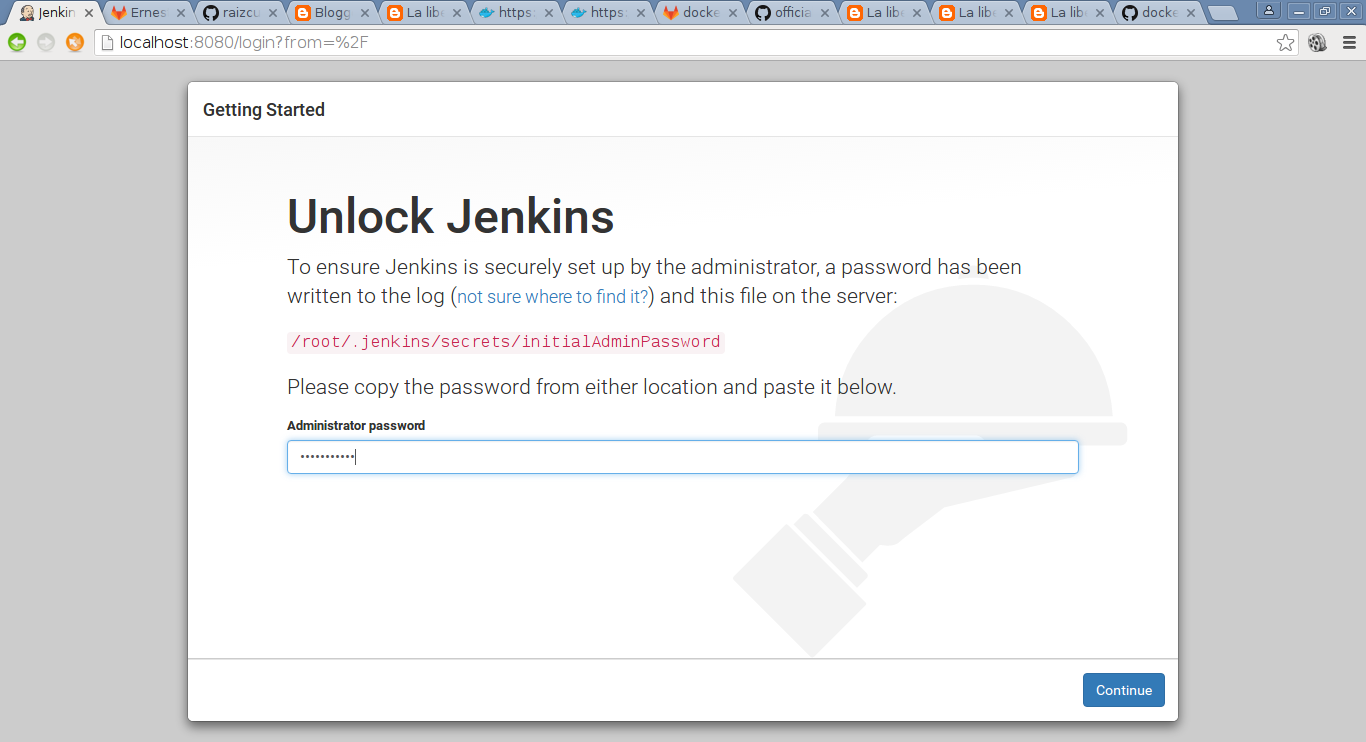
Here docker exec is run in order to see the contents of the file that holds the key to authenticate jenkins:
docker exec -ti naughty_darwin /bin/bashLook for the file inside the container:
cd /root/.jenkins/secrets/
cat initialAdminPassword
4280c91df94a43308a731c008c6abb3d
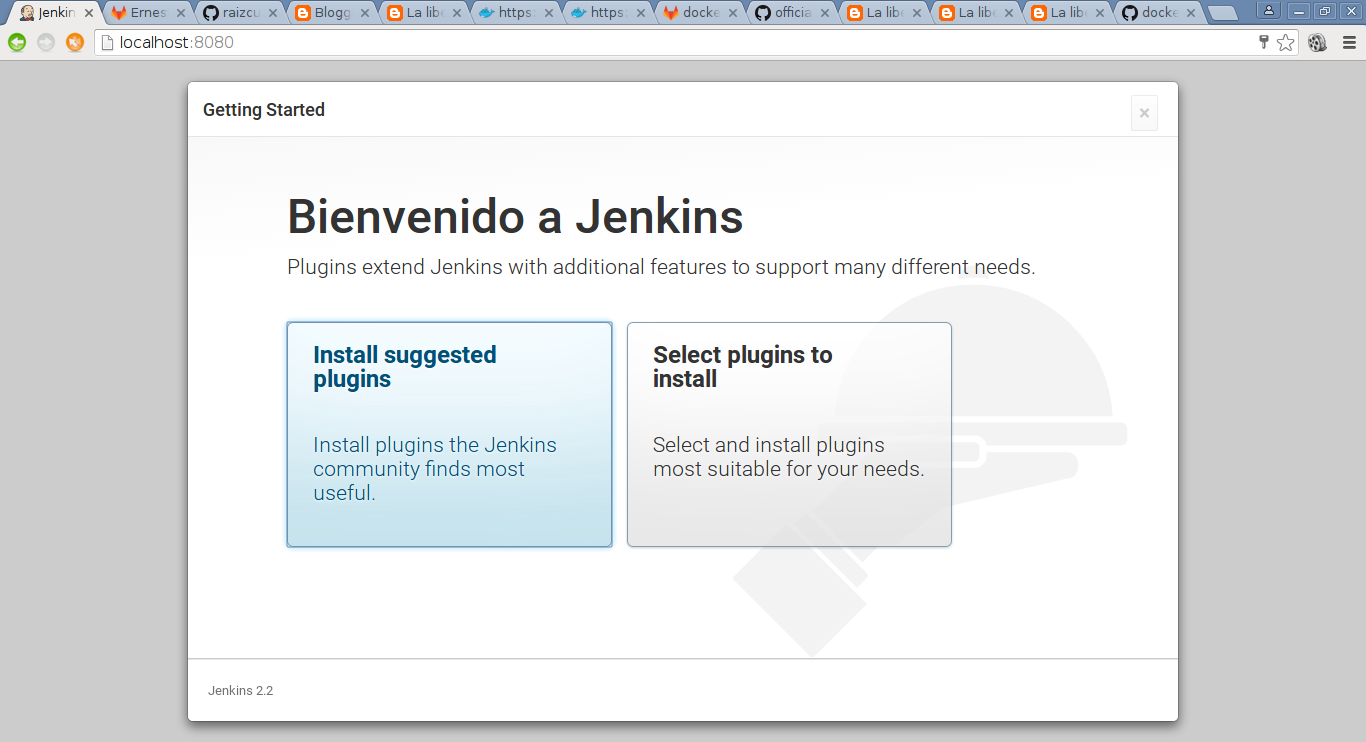
With that, it asks whether you want to select the plugins or install the recommended ones:
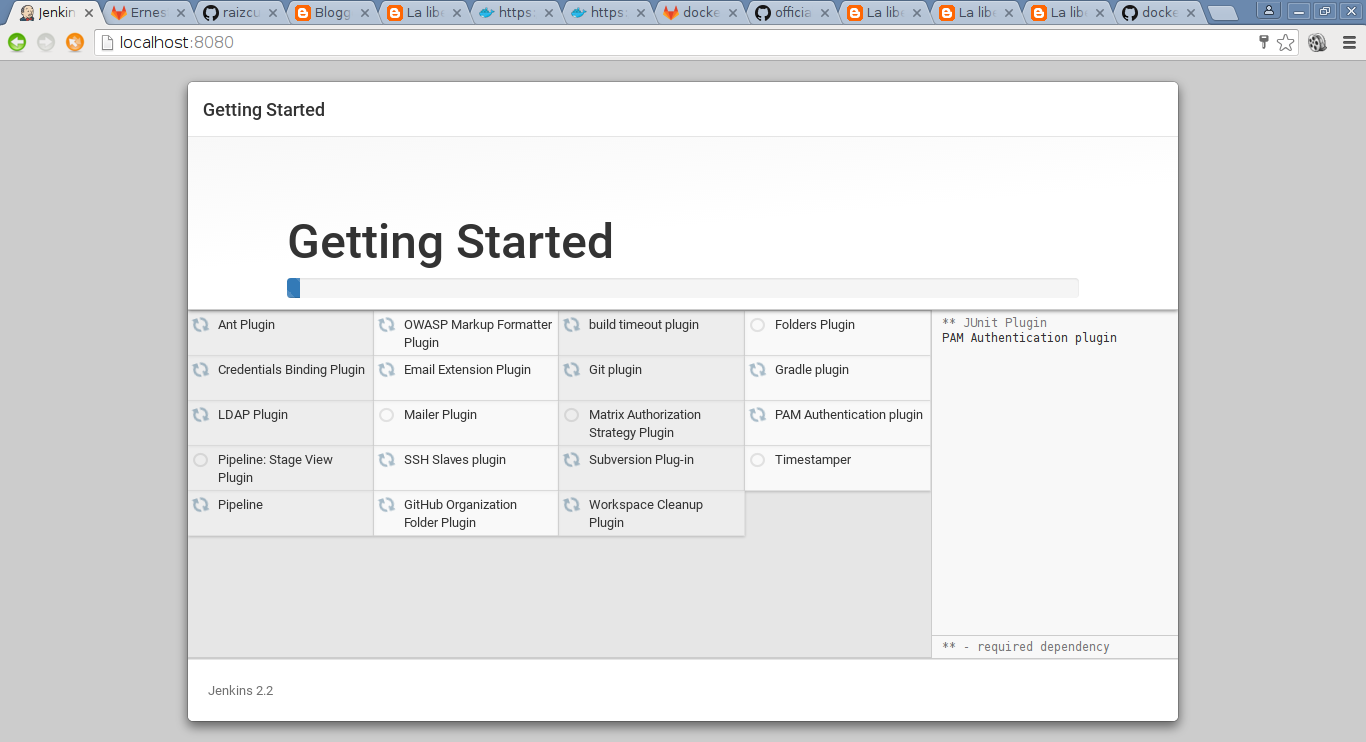
Then the plugin installation process window is shown:
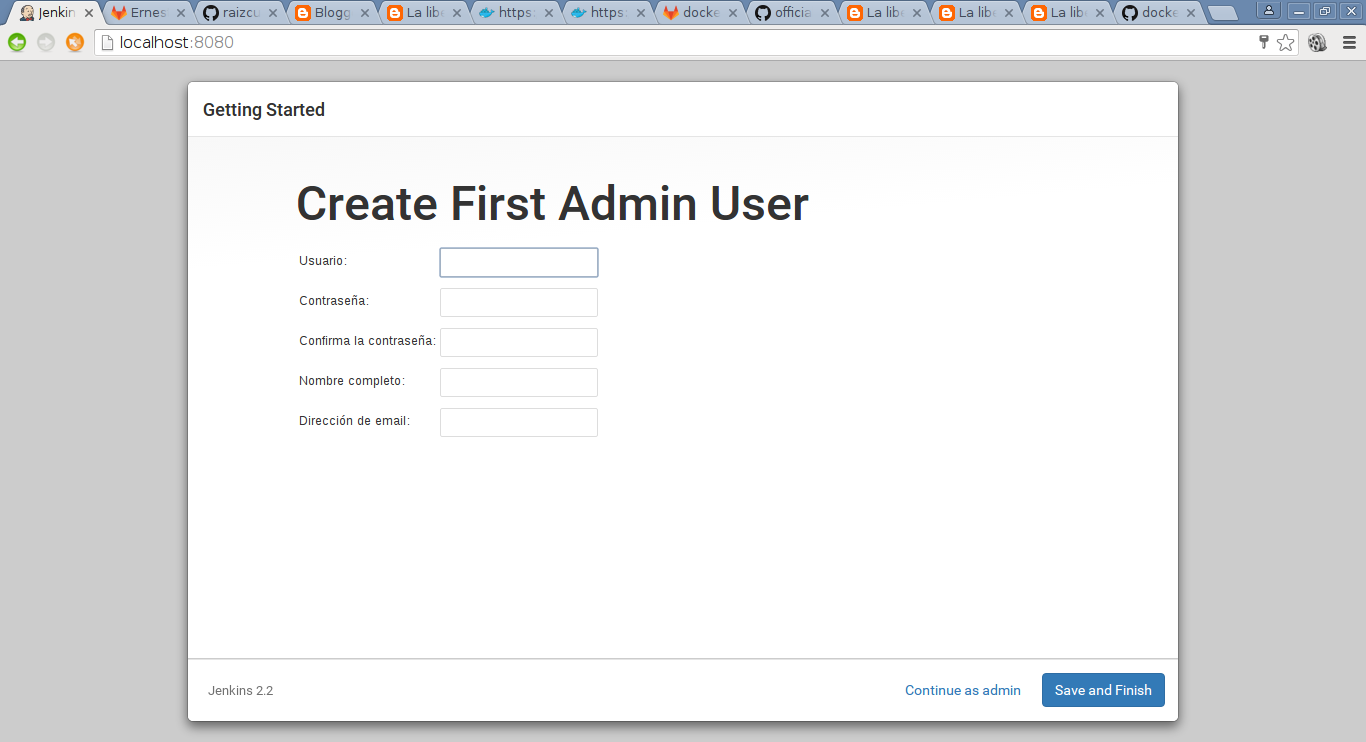
When this process finishes, you are asked to create an administrator user:
After this, the page saying the configuration process has finished is shown:
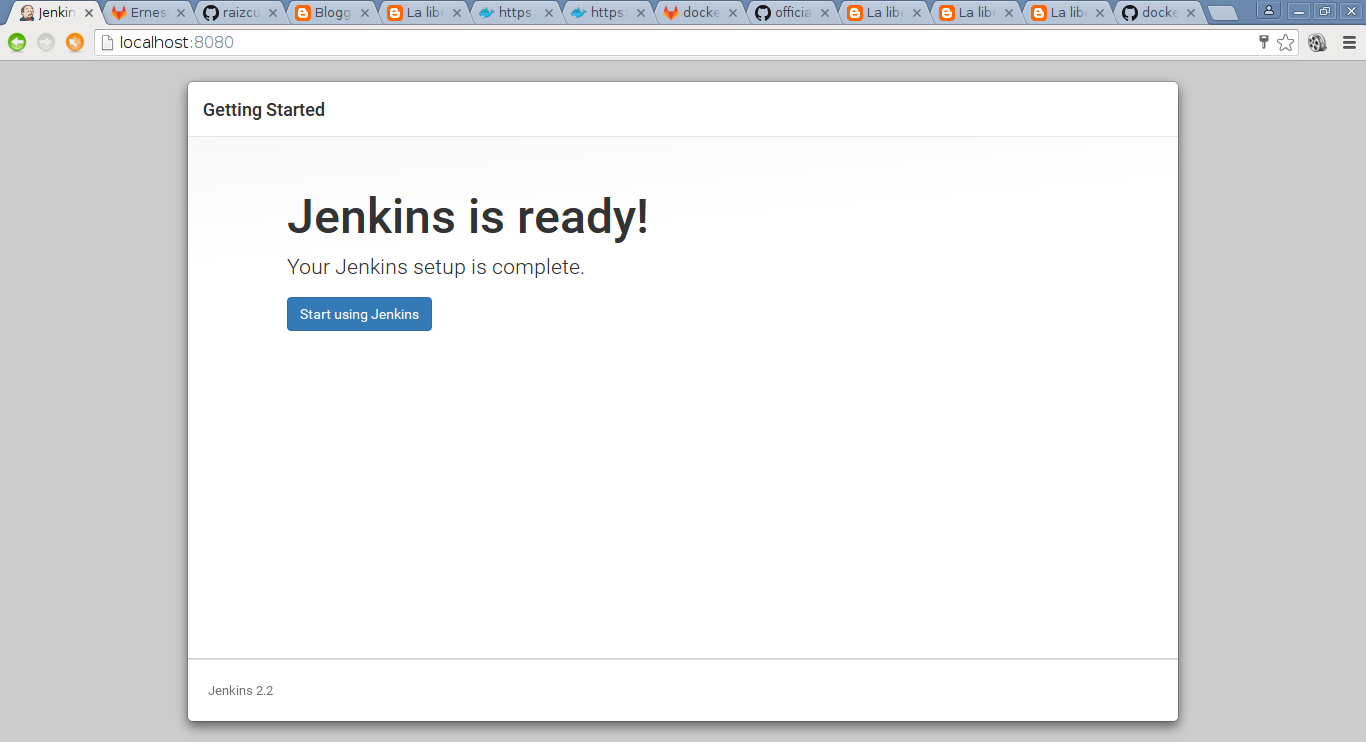
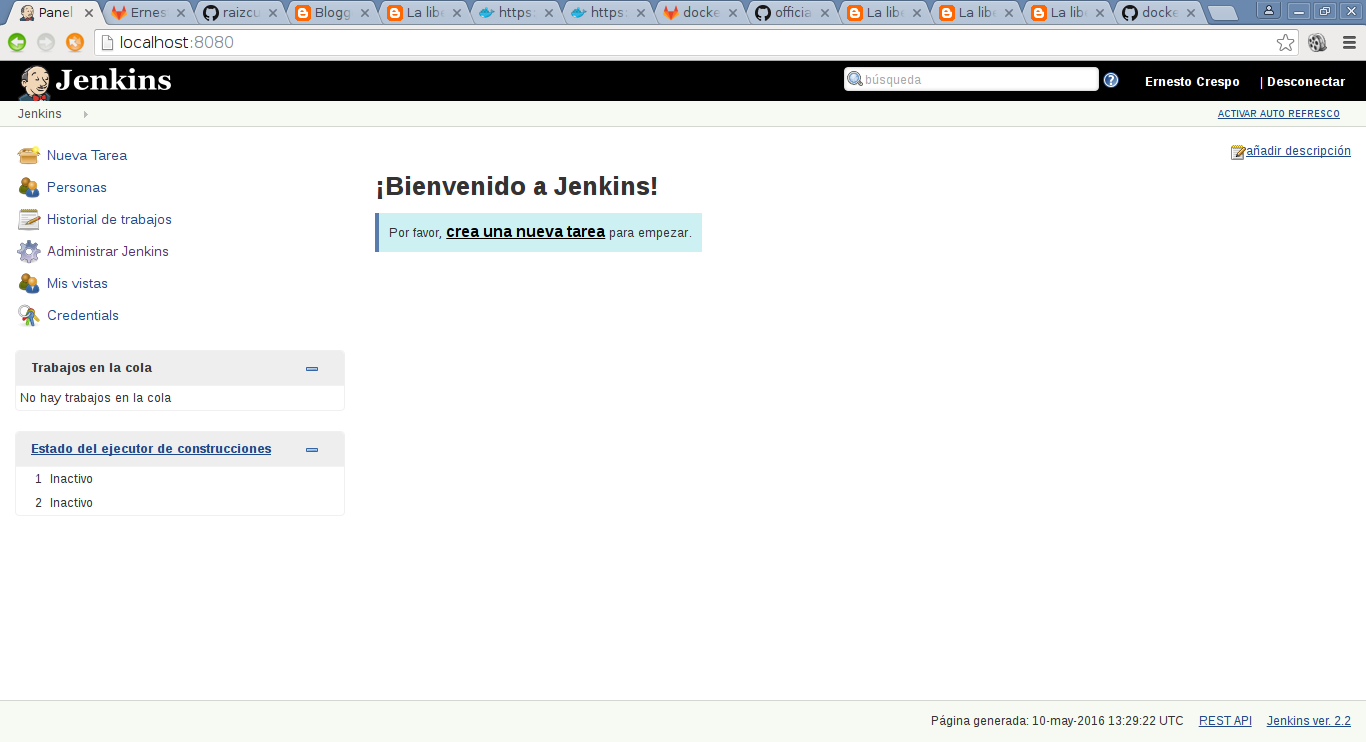
Below is Jenkins' start page:
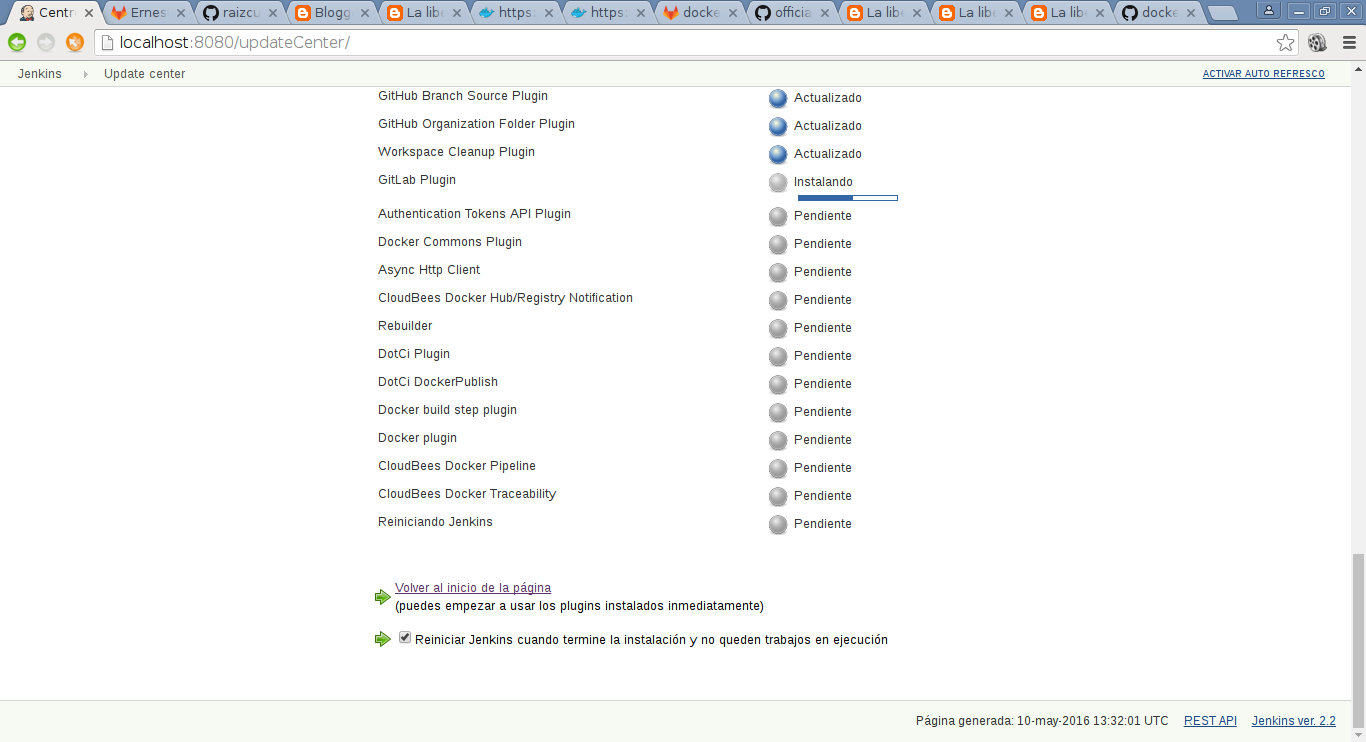
To finish, we will install some additional plugins needed for the next article (git, gitlab and docker):
The Dockerfile file used for the article is on github at the following link.
To finish, the changes are pushed to docker hub:
First, log in to docker hub:
docker login
Login with your Docker ID to push and pull images from Docker Hub. If you don't have a Docker ID, head over to https://hub.docker.com to create one.
Username: ecrespo
Password:
Login Succeeded
Then commit:
docker commit 91594bea7711 ecrespo/docker-jenkins
sha256:561e411227e6c0d5e74ef85f6d533c44cb1e66b68ef2da6eec66d228de173fc2
Push:
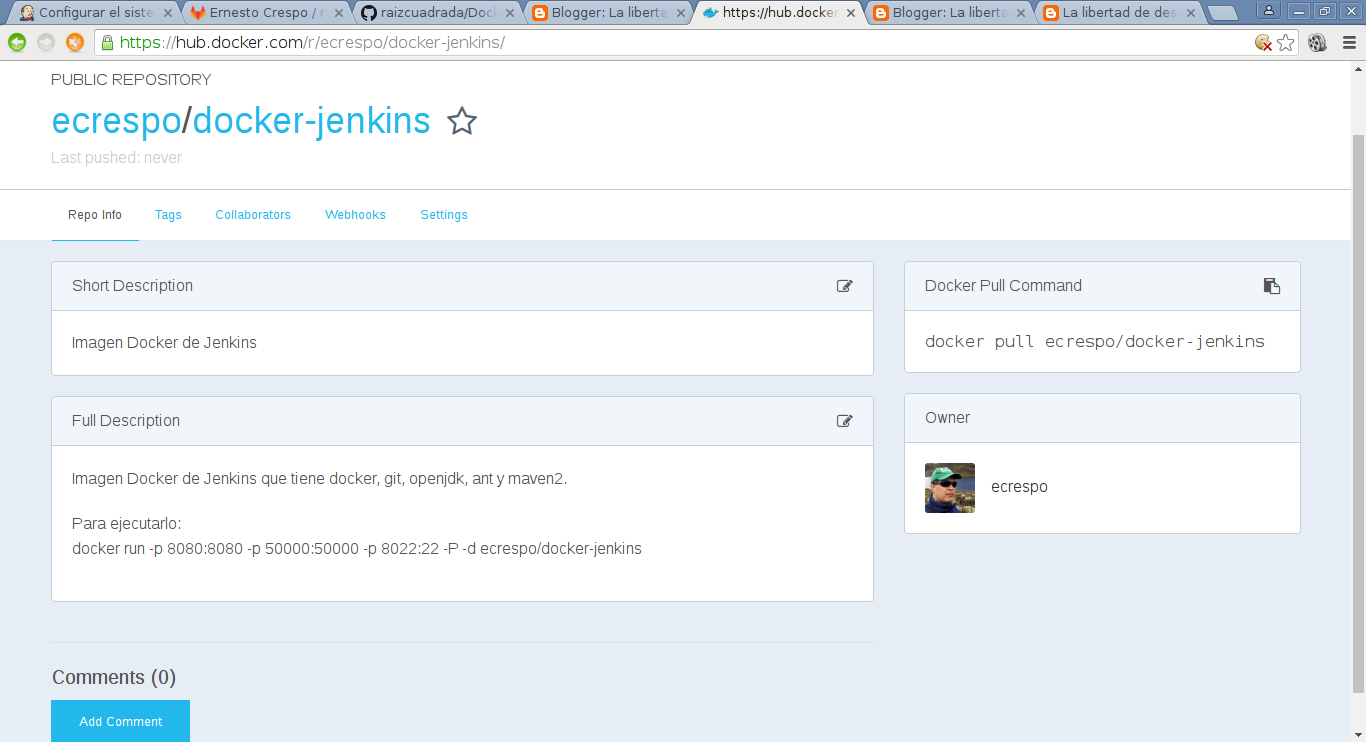
docker push ecrespo/docker-jenkinsBelow is an image of the ecrespo/jenkins site on docker hub:
The configuration of Jenkins with Gitlab will be covered in the next article.
Make a donation! If you liked the article you can make a donation with Bitcoin (BTC) using the digital wallet of your choice to the following address: 17MtNybhdkA9GV3UNS6BTwPcuhjXoPrSzV
Or by scanning the QR code from your wallet: