A previous article explained how to install gitlab-ce through Docker (link).
The problem is that gitlab still needs Continuous Integration (CI) configured; for that you need to install gitlab-runner (on the same machine, on another machine or as a separate container).
You can see the description of gitlab-ci features at the following link.
You can check the guide for installing gitlab-runner at the following link.
For the docker case you can see the following documentation.
The previous articles about Docker are:
-
Starting Django with docker using docker-compose with postgresql as a microservice.
-
Create a Continuous Integration and Deployment environment with Docker for node.js.
-
Install Jenkins through Docker and create a Jenkins Docker image
-
Create a Docker container as a development environment for Sails.js.
The first thing to do is pull the Docker image for gitlab-runner:
docker pull gitlab/gitlab-runnerThen start the gitlab-runner registration service:
docker run -d --name gitlab-runner --restart always -v /srv/gitlab-runner/config:/etc/gitlab-runner -v /var/run/docker.sock:/var/run/docker.sock gitlab/gitlab-runnerThis way gitlab-runner will use the docker on the host machine, and you have access to the gitlab-runner configuration from the host machine.
Running docker ps gives the following:
docker ps
CONTAINER ID        IMAGE                     COMMAND                  CREATED             STATUS              PORTS                                                            NAMES
13ffb573fadf        gitlab/gitlab-runner      "/entrypoint run --us"   3 hours ago         Up 3 hours                                                                           gitlab-runner
b483b38fe29e        gitlab/gitlab-ce:latest   "/assets/wrapper"        12 days ago         Up 4 hours          0.0.0.0:22->22/tcp, 0.0.0.0:443->443/tcp, 0.0.0.0:9080->80/tcp   gitlab1
As you can see, gitlab-ce and gitlab-runner are now both active.
To register a project, run the following command on the machine:
docker exec -ti 13ffb573fadf gitlab-runner register What comes next is registering a project that is in gitlab. In this case a project will be created in gitlab-ce and we go to its settings, where the runners section is selected:
We have the project prueba-nodejs:
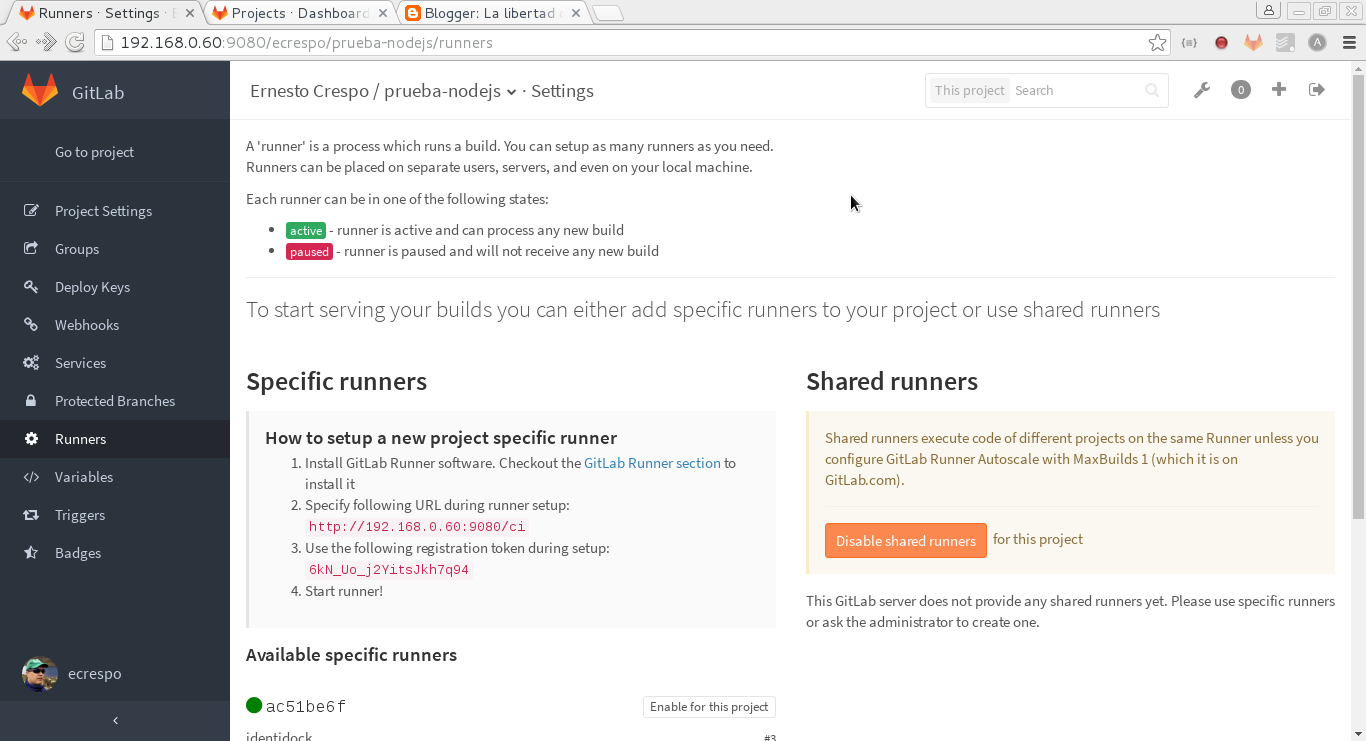
The important data are:
URL:http://192.168.0.60:9080/ci
TOKEN:6kN_Uo_j2YitsJkh7q94
Next, run the register:
docker exec -ti 13ffb573fadf gitlab-runner register And pass the data it asks for (the following figure shows the project registration configuration):
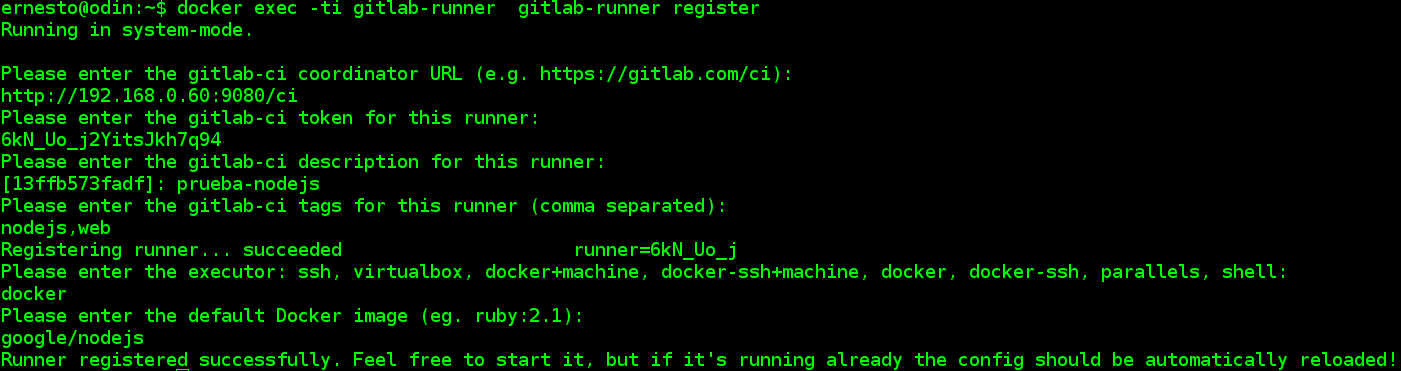
I passed the url, the token, then it asks for the project description, in this case prueba-nodejs, then some tags for it, docker will be used, and finally the base Docker image to use.
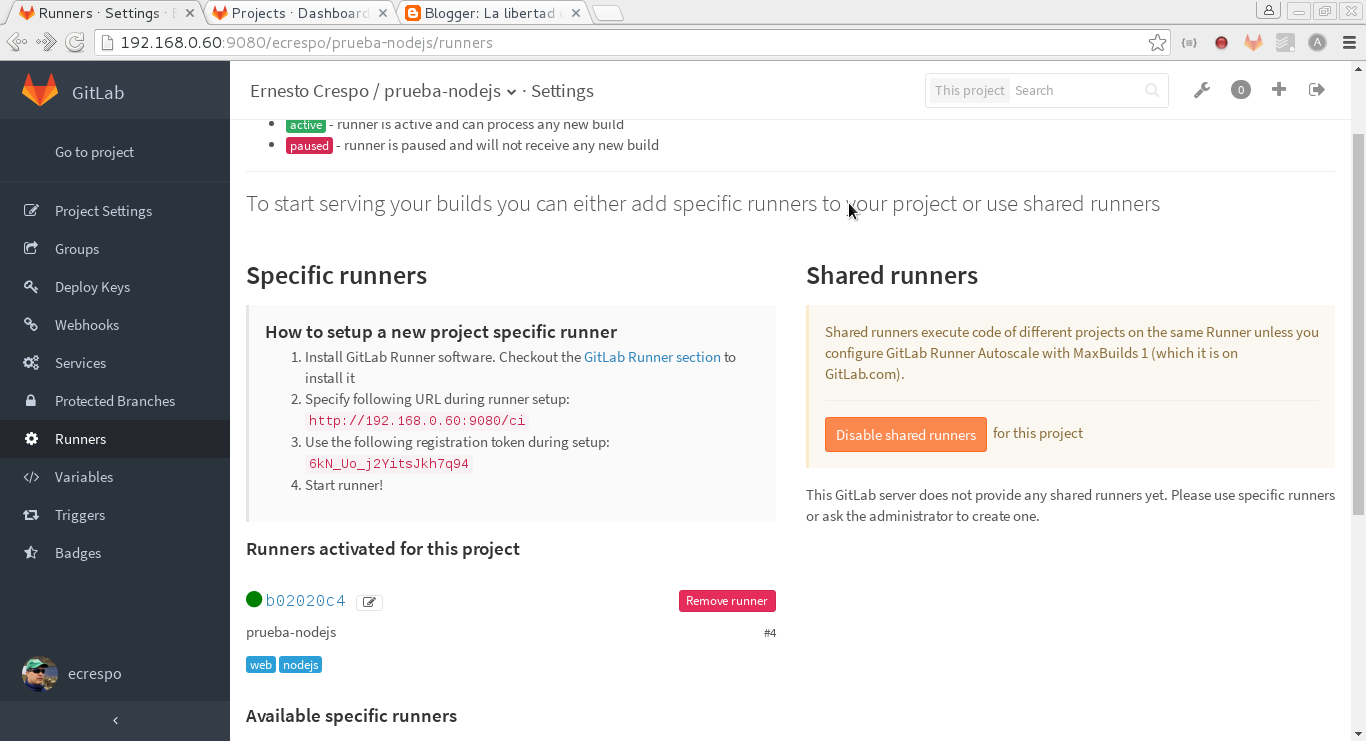
Finally, an image of the runner configuration is shown, which indicates that the runner and gitlab are connected:
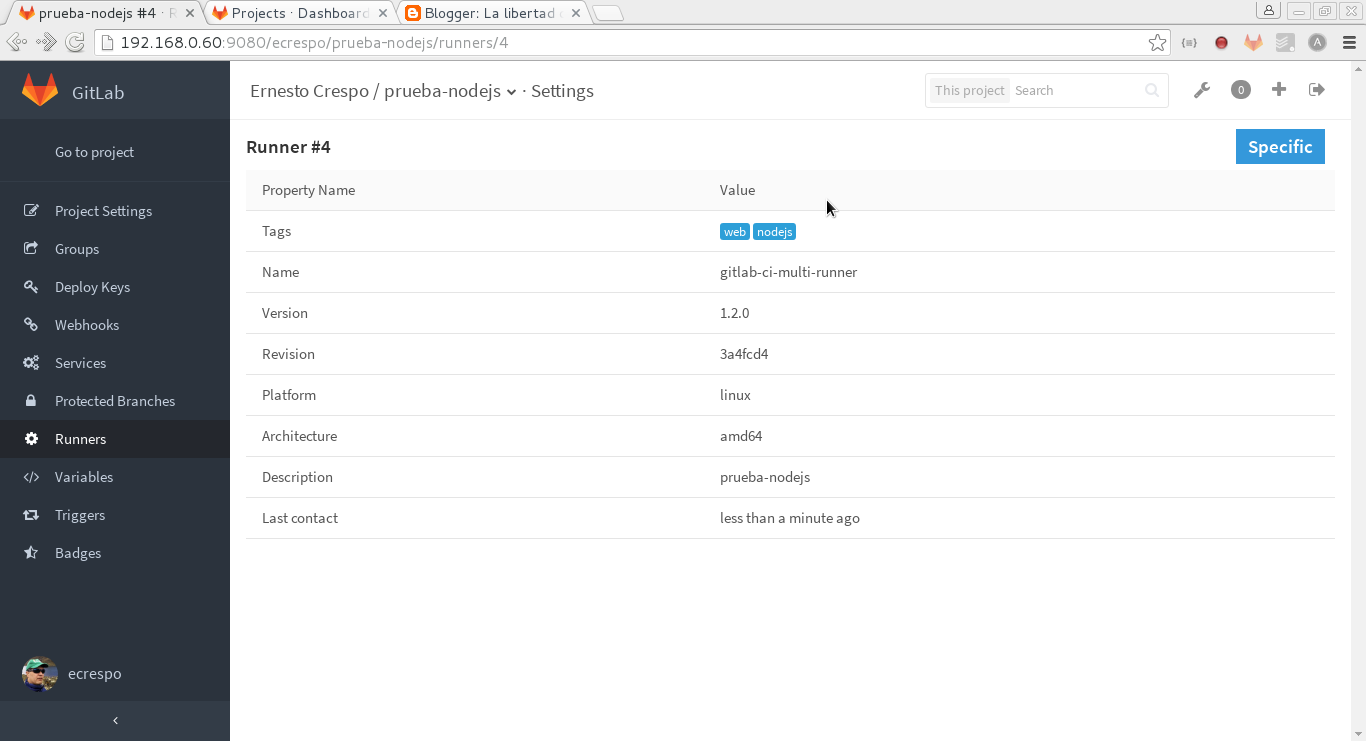
And the information about that connection:
The next article will explain how to run a CI test.
Make a donation! If you liked the article you can make a donation with Bitcoin (BTC) using the digital wallet of your choice to the following address: 17MtNybhdkA9GV3UNS6BTwPcuhjXoPrSzV
Or by scanning the QR code from the wallet: