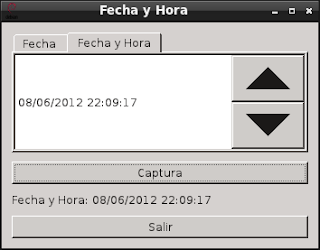
This article creates a window with 2 tabs, 2 buttons, and a label; the first button captures the date or the date and time, depending on the selected tab, and shows it in the label, and the other button quits the application; the first tab shows the date widget and the second one shows the date and time widget.
The following widgets will be used:
- QtGui.QTabWidget: Lets you create tabs.
- QtGui.QDateEdit: Lets you create the incremental or decremental date widget.
- QtGui.QDateTimeEdit: Lets you create the incremental or decremental date and time widget.
Since there is a single button to capture the date for both tabs, it is necessary to get the index of each tab so that, depending on the case, the result is the date or the date and time.
The program code is shown below:
#!/usr/bin/env python
# -*- coding: utf-8 -*-

#Se importa el modulo sys
import sys


#De PyQt4 importar QtGui y QtCore
from PyQt4 import QtGui
from PyQt4 import QtCore


class App(QtGui.QWidget):
    def __init__(self,parent=None):
        QtGui.QWidget.__init__(self, parent)
        #Se define el tamano de la ventana
        self.setGeometry(500, 500, 350, 250)
        #Se le coloca un titulo a la ventana y se asocia un icono.
        self.setWindowTitle('Fecha y Hora')
        self.setWindowIcon(QtGui.QIcon('./openlogo-50.png'))

        #Se crea la instancia del widget de la fecha
        #Se define el formato de la fecha
        #Se le asigna al widget la fecha actual.
        self.fecha = QtGui.QDateEdit(self)
        self.fecha.setDisplayFormat("dd/MM/yyyy")
        self.fecha.setDate(QtCore.QDate.currentDate())


        #Se crea la instancia del widget de la fecha y hora.
        #Se le da formato a la fecha y hora.
        #Se le asigna la fecha y hora actual al widget.
        self.fechayhora = QtGui.QDateTimeEdit(self)
        self.fechayhora.setDisplayFormat("dd/MM/yyyy HH:mm:ss")
        self.fechayhora.setDateTime(QtCore.QDateTime.currentDateTime())

        #Se crea el boton que captura la fecha u hora
        captura1 = QtGui.QPushButton("Captura",self)
        #Se crea el boton para salir de la aplicacion
        quit = QtGui.QPushButton('Salir', self)

        #Se crea la etiqueta donde se muestra la fecha u hora
        self.etiqueta = QtGui.QLabel("Fecha:")

        #Se crea la instancia del widget pestagna
        #Se define que no se puede cerrar las pestagnas
        self.tab = QtGui.QTabWidget(self)
        self.tab.setTabsClosable(False)

        #Se agrega a la 1era pestagna el widget de la fecha
        self.tab.addTab(self.fecha,"Fecha")
        #Se agrega a la 2da pestagna el widget de la fecha y hora
        self.tab.addTab(self.fechayhora,"Fecha y Hora")


        #Empaquetamiento de los widgets en una cuadricula.
        grid = QtGui.QGridLayout()
        grid.setSpacing(10)
        #Se agrega el widget pestagna, boton de captura,
        #etiqueta y boton de salida.
        grid.addWidget(self.tab, 1, 0)
        grid.addWidget(captura1,2,0)
        grid.addWidget(self.etiqueta, 3, 0)
        grid.addWidget(quit,4,0)
        self.setLayout(grid)

        #Se conecta la segnal del boton captura con el evento clicked al
        #metodo mostrarIndice.
        self.connect(captura1,QtCore.SIGNAL('clicked()'),self.mostrarFechayHora)
        #Se asocia ala segnal del boton quit al evento clicked y se ejecuta la
        #salida del programa.
        self.connect(quit, QtCore.SIGNAL('clicked()'),QtGui.qApp, QtCore.SLOT('quit()'))


    def mostrarFechayHora(self):
        #Captura el indice de la pestagna para mostrar
        #la informacion de la fecha u fecha y hora.
        if self.tab.currentIndex() == 0:
            #Se presenta en la etiqueta la fecha con el
            #formato dia/mes/agno.
            #se toma la informacion de la funcion date del widget
            #este devuelve una fecha y se captura el dia, mes y agno.
            self.etiqueta.setText("Fecha: %s/%s/%s"
                                  %(self.fecha.date().day(),
                                    self.fecha.date().month(),
                                    self.fecha.date().year()) )

        else:
            #Se presenta en la etiqueta la informacion de la fecha y hora.
            #con el formato dia/mes/agno hora:minutos:segundos.
            #Se utiliza el metodo textFromDateTime que devuelve un string
            #pasandole una fecha y hora
            self.etiqueta.setText("Fecha y Hora: %s"
                                  %self.fechayhora.textFromDateTime(self.fechayhora.dateTime()))


#Se ejecuta el programa principal
if __name__ == "__main__":
   #Se instancia la clase QApplication
   app = QtGui.QApplication(sys.argv)
   #Se instancia el objeto QuitButton
   qb = App()
   #Se muestra la aplicacion
   qb.show()
   #Se sale de la aplicacion
   sys.exit(app.exec_())
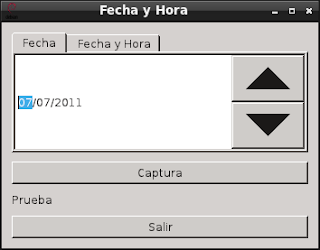
The figure shows the program at startup:
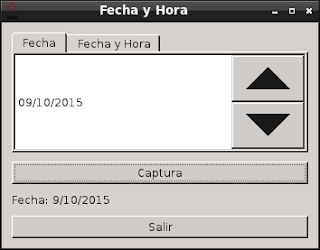
The following figure shows that the date was modified with the increment or decrement buttons and then the capture button was pressed:
The following figure shows what happens when the second tab is selected:
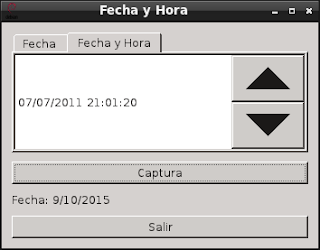
The last figure shows that the date and time were modified with the increment or decrement buttons and then the capture button was pressed:
===
Make a donation! If you liked the article you can make a donation with Bitcoin (BTC) using the digital wallet of your choice to the following address: 17MtNybhdkA9GV3UNS6BTwPcuhjXoPrSzV
Or by scanning the QR code from your wallet: