Years ago I used qemu to test the packages I built for Debian, then I switched to virtualbox.
Lately it has seemed to me that virtualbox consumes more resources, so on a recommendation I went back to qemu with kvm.
The required packages are:
kvmvirt-manager: To manage the virtual machines graphicallylibvirt-binqemu-kvm
Installation:
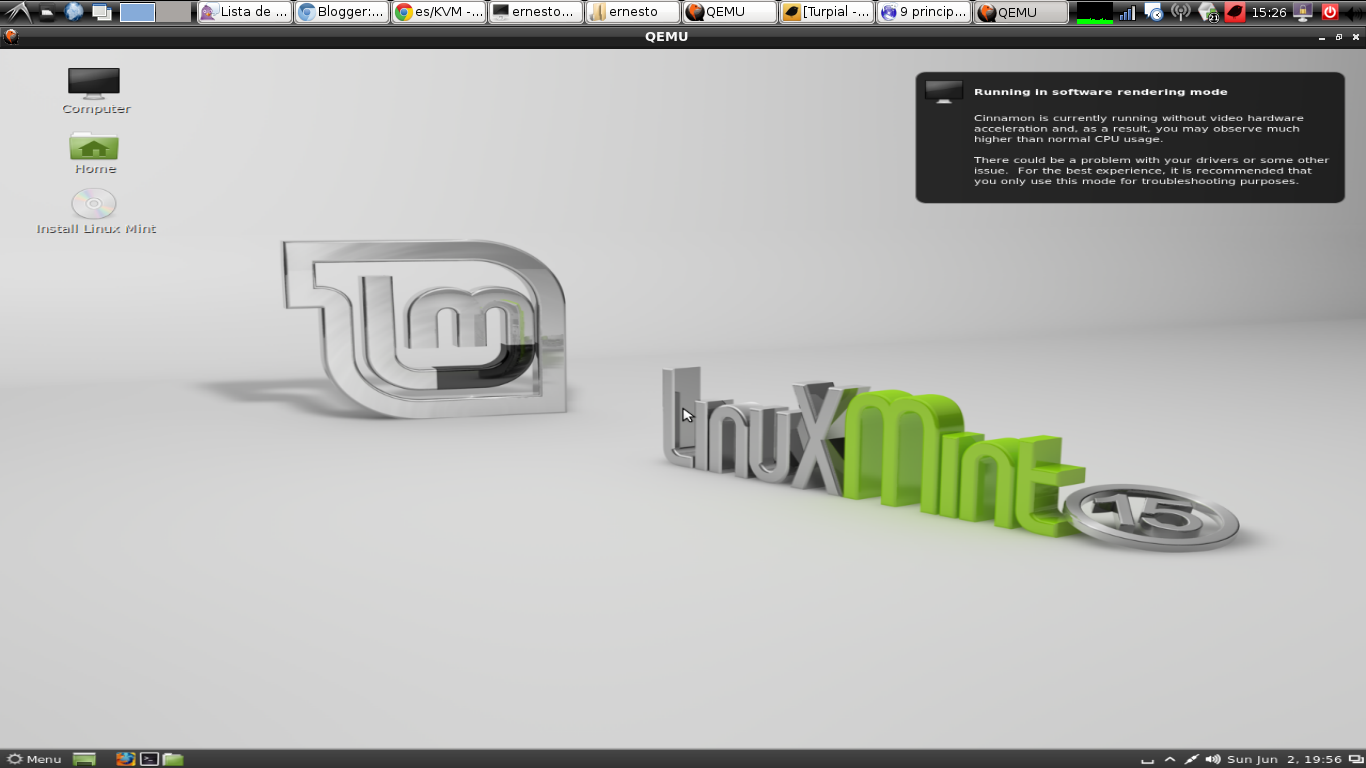
apt-get install kvm virt-manager libvirt-bin qemu-kvmInitial test: We will start a virtual machine that boots a live-cd, for example the Linuxmint 15 live-cd with 720M of RAM:
kvm -m 720 -cdrom linuxmint-15-cinnamon-dvd-32bit.isoThe following figure shows the screenshot of the virtual machine:
Create a hard disk for the virtual machine: The virtual hard disk is created in a file; in this case we will create a 10 GB virtual hard disk to install Debian on that virtual hard disk:
qemu-img create debian.img 10G
Formatting 'debian.img', fmt=raw size=10737418240
Now we have:
ernesto@debian:~/imagenes$ ls -l
total 1808024
-rw-r--r-- 1 ernesto ernesto 10737418240 jun  2 16:22 debian.img
-rw-r--r-- 1 root    root    10737418240 jun  2 16:00 debianserver.img
-rw-r--r-- 1 ernesto ernesto 10737418240 jun  2 15:30 linuxmint.img
Installing Debian in the virtual machine:
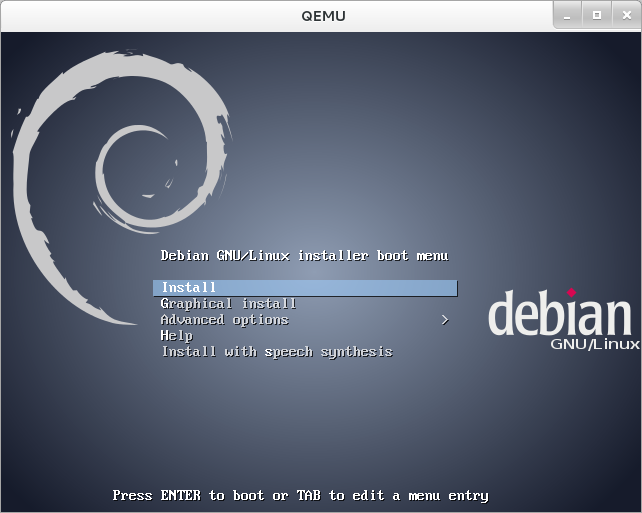
Now we will install the Debian distribution for i386 with 720MB of RAM on the virtual hard disk called debian.img, specifying the hard disk to use and the iso to use:
qemu -m 720 -hda debian.img -cdrom ../Isos/debian-7.0.0-i386-lxde-CD-1.isoThe following screenshot shows the start of the Debian cd:
After the installation process finishes, the virtual machine is started as follows:
qemu -m 720 -hda debian.imgThe following figure shows the Debian LXDE desktop with the console open, showing the IP that the virtual machine has:
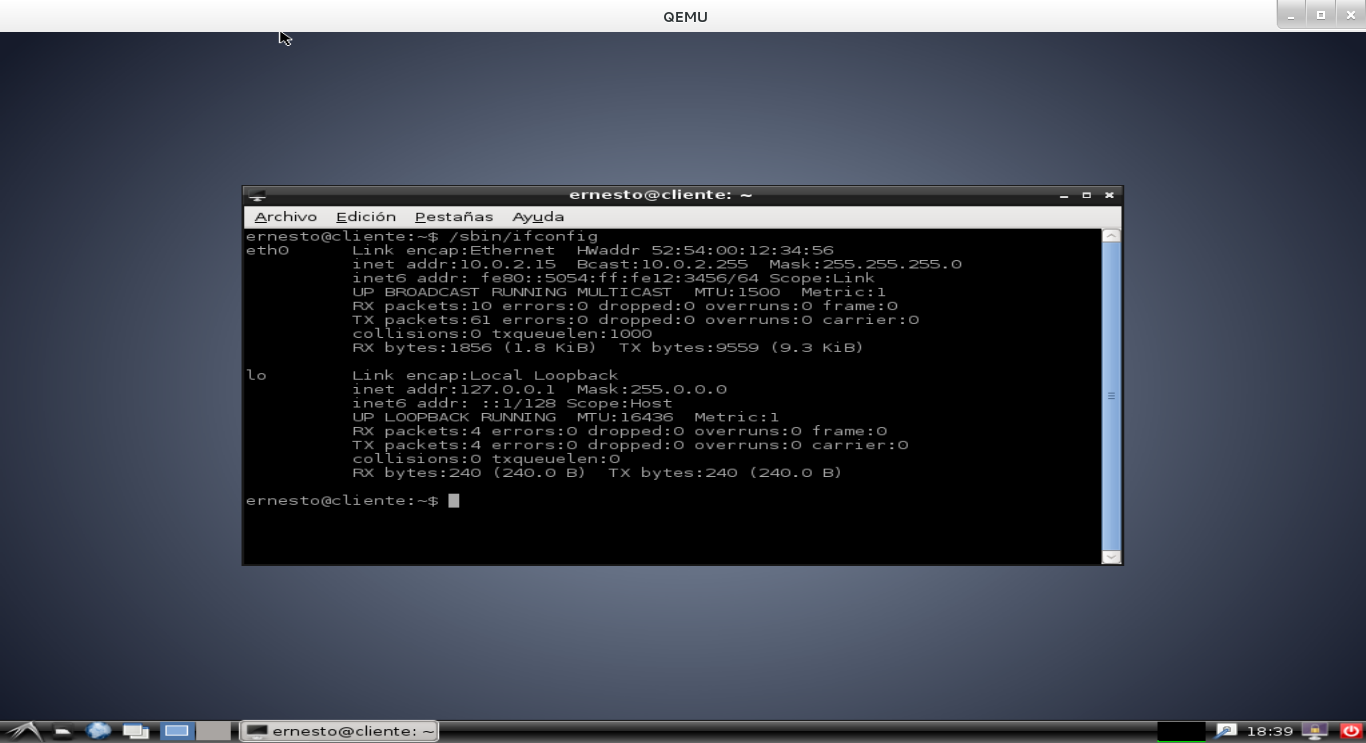
As you can see, the IP the virtual machine has is a private IP. The only way to access the virtual machine is directly from qemu; you cannot open a remote session because the machine hosting the virtual machine has no route to the virtual machine's IP.
For that we need to give qemu some network options, these are nic and tap; the latter creates a tap interface on the machine hosting the virtual machine, with the route to a network.
qemu -m 720 -hda debian.img -net nic -net tapIn addition, you need to install dnsmasq and configure an iptables rule in the kvm configuration in order to browse from the virtual machine.
Install dnsmasq:
apt-get install dnsmasqAdd the following configuration to the /etc/dnsmasq.conf file:
#Archivo de resolv.conf con la configuración de dns de la red local.
resolv-file=/etc/resolv-orig.conf
#Interface a la cual acepta peticiones, en este caso tap0 para la máquina virtual (dns y dhcp) y wlan0 (sólo dns).
interface=tap0,wlan0
#No se activa el dhcp a la interfaz wlan0
no-dhcp-interface=wlan0
#Se define el rango de red de dhcp y el tiempo de liberación de las IPs.
dhcp-range=172.20.0.10,172.20.0.15,12h
Add the following iptables rule to the /etc/kvm/kvm-ifup file:
vim /etc/kvm/kvm-ifup
exec iptables  -t nat -A POSTROUTING -s 172.20.0.0/16 -o wlan0 -j MASQUERADE
This rule applies nat to the network 172.20.0.0/255.255.0.0.
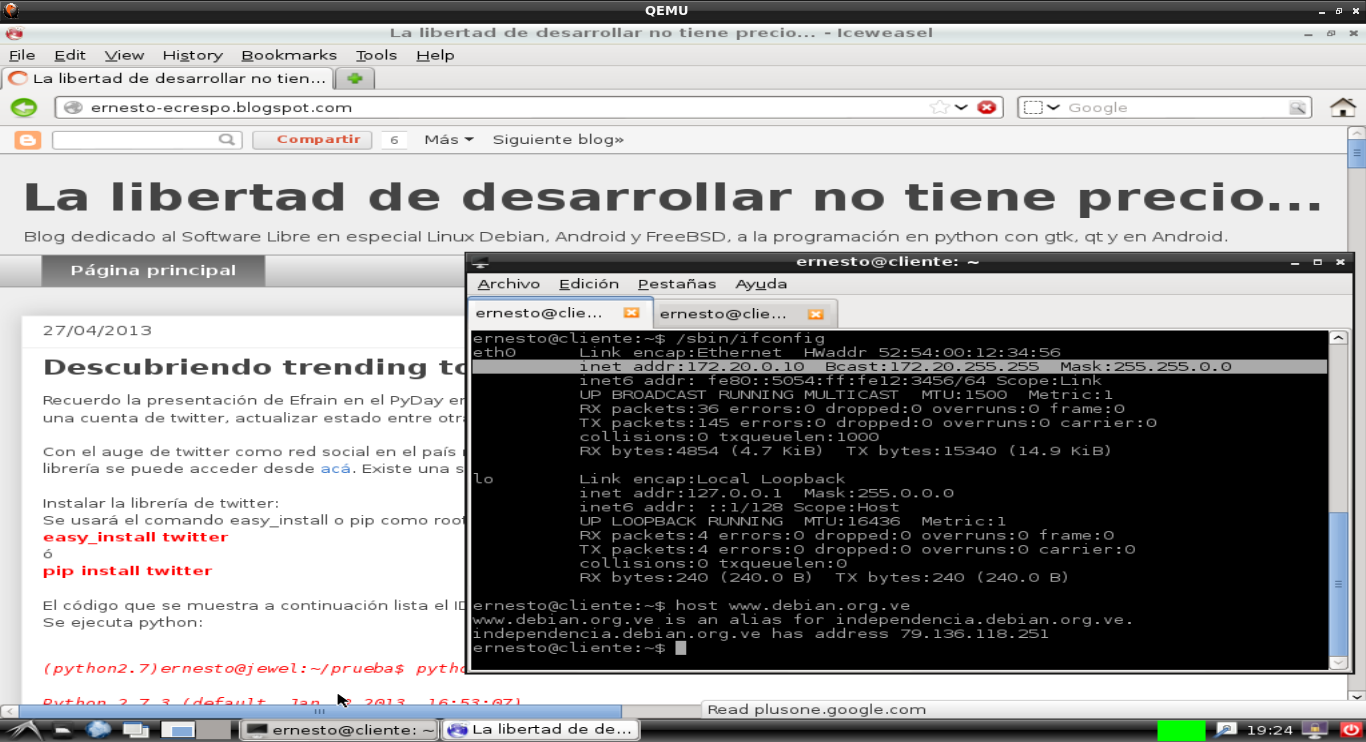
With this configuration you can now browse and access the virtual machine remotely.
To finish the configuration, add an iptables rule that flushes the nat tables in the file /etc/kvm/kvm-ifdown:
vim /etc/kvm/kvm-ifdown

exec iptables -t nat -F
The routing table of the machine where the virtual machine is started is the following:
root@debian:~# route -n
Kernel IP routing table
Destination     Gateway         Genmask         Flags Metric Ref    Use Iface
0.0.0.0         185.29.52.131   0.0.0.0         UG    0      0        0 wlan0
172.20.0.0      0.0.0.0         255.255.0.0     U     0      0        0 tap0
185.29.52.128   0.0.0.0         255.255.255.128 U     0      0        0 wlan0
The following screenshot shows this blog's page from the virtual machine, and the console showing the IP the virtual machine is using; with that IP you can access it from the machine hosting the virtual machine.
Make a donation! If you liked the article you can make a donation with Bitcoin (BTC) using the digital wallet of your choice to the following address: 17MtNybhdkA9GV3UNS6BTwPcuhjXoPrSzV
Or by scanning the QR code from your wallet: