These days I had to program an application that interacts automatically with another one, and for that I used the python-mechanize library.
This library allows interaction with web applications in order to automate that interaction; when you want to run stress tests against an application, multi-mechanize is used.
You can check the mechanize page at the following link (broken link). There is a guide in English.
Lately I have been practicing with django (a web development framework in python), and I hope to publish articles about it soon.
The Django application is a bookmark manager: there is a login, a welcome page for the registered user, and then you can list the bookmarks and log out (application under development).
All of those steps are going to be automated with python-mechanize.
To install mechanize you can do it the Debian way:
#apt-get install python-mechanizeThe following figure shows the django application without much decoration.
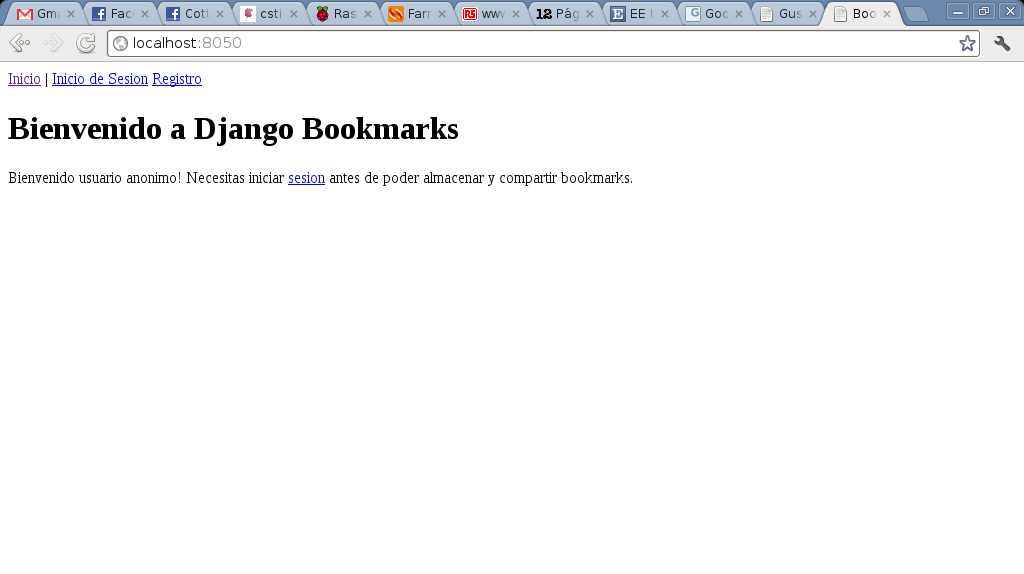
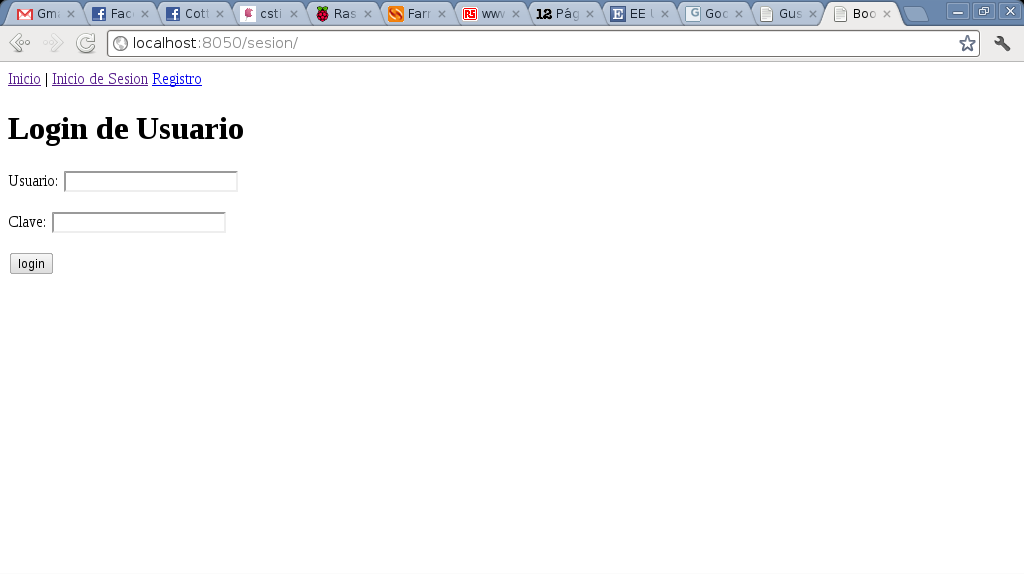
When you click on sesión or Inicio de Sesión, the request for user and password appears, as the figure shows:
Right-click on the Usuario input and select Inspect element (this is in google chrome or chromium), and a section appears showing the form's code.
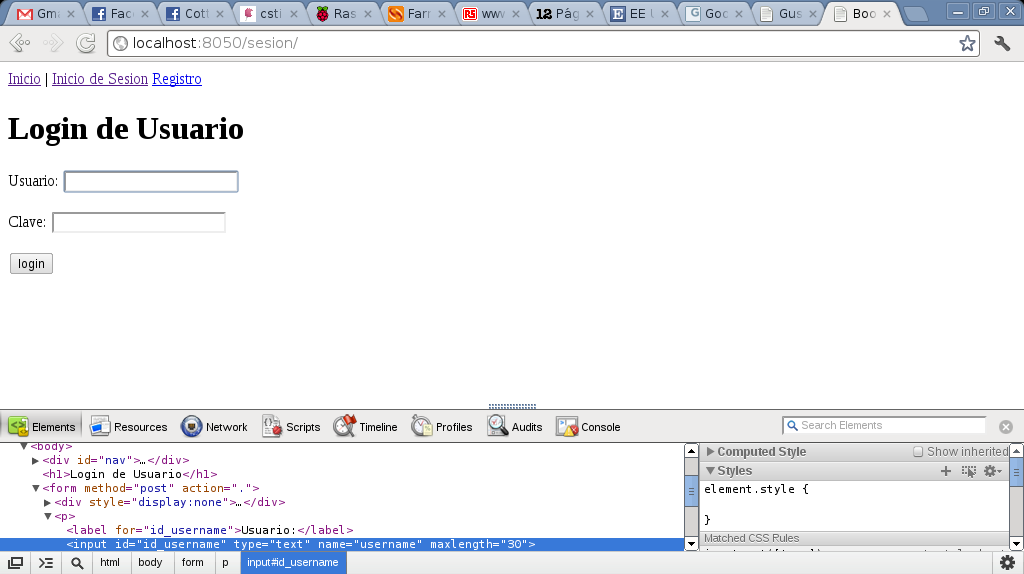
This way you can find out the names of the form elements and then use them in the python code with mechanize.
Start the python interpreter:
ecrespo@jewel:~$ python
Python 2.7.2+ (default, Dec  1 2011, 01:55:02)
[GCC 4.6.2] on linux2
Type "help", "copyright", "credits" or "license" for more information.
>>>
Import mechanize and the cookie handling module:
>>> import mechanize
>>> import cookielib
Create the mechanize browser instance:
>>>br = mechanize.Browser()Create the cookie instance:
>>>cj = cookielib.LWPCookieJar()Associate the cookie instance with the browser:
>>>br.set_cookiejar(cj)Set it so that robots are not handled:
>>>br.set_handle_robots(False)Set the refresh time:
>>>br.set_handle_refresh(mechanize._http.HTTPRefreshProcessor(), max_time=1)Set the browser headers; in this case we are telling it that the browser is a firefox on Linux Debian:
>>>br.addheaders = [('User-agent', 'Mozilla/5.0 (X11; U; Linux i686; es-VE; rv:1.9.0.1)Gecko/2008071615 Debian/6.0 Firefox/9')]Open the web application that is on localhost, port 8050:
>>>r = br.open('http://localhost:8050/')Show the page's result:
>>>print r.read()The following figure shows the result (the page's html code) of the previous command:
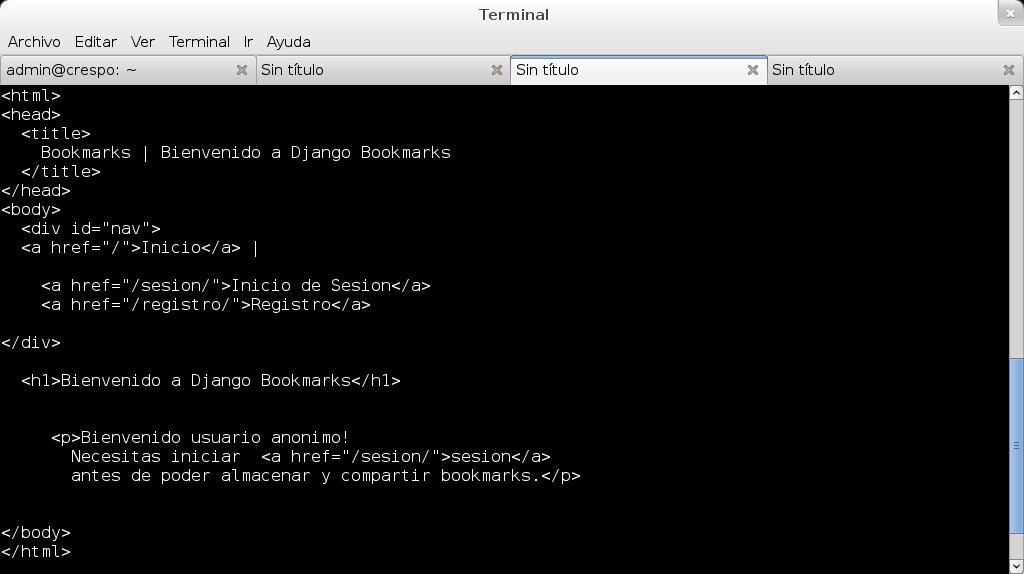
Now we will go through the links the page has, to click on sesión or Inicio de sesión and enter the user and password:
A loop is created over the links on the page, then each link's text is checked; if it is sesión, the link is opened by passing its url, and then the loop ends.
>>> for link in br.links():
...     if link.text == "sesion":
...         r= br.open("%s" %link.absolute_url)
...         break
...     else:
...         continue
At this point we are on the page for entering the user and password:
>>> print br.geturl()
http://localhost:8050/sesion/
You can show the html code of the login page with the command br.response().read():
>>>print br.response().read()The figure shows the result of the command:
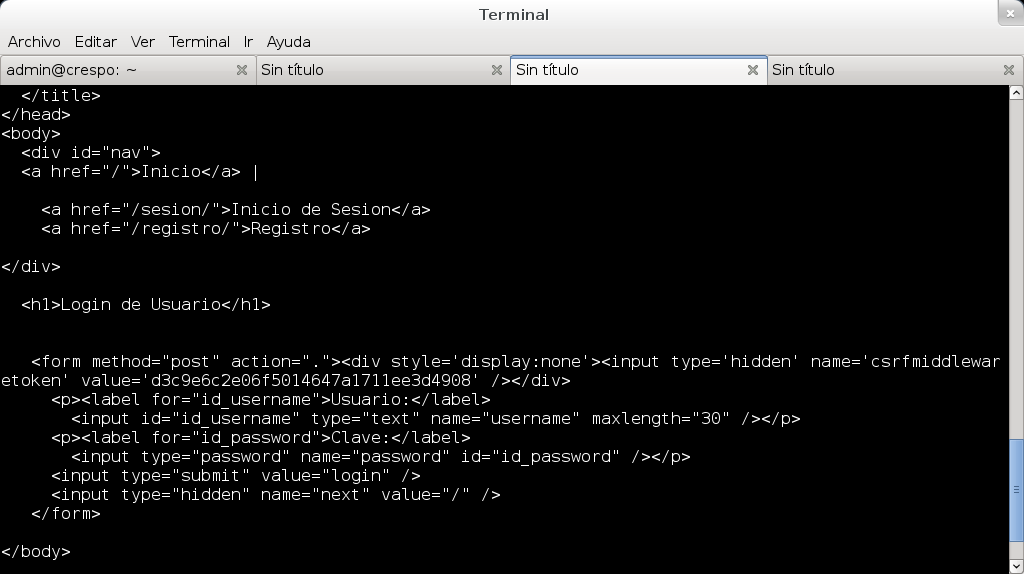
You can show the form's fields with the command br.forms():
>>> for form in br.forms():
...     print form
...
<POST http://localhost:8050/sesion/ application/x-www-form-urlencoded
  <HiddenControl(csrfmiddlewaretoken=d3c9e6c2e06f5014647a1711ee3d4908) (readonly)>
  <TextControl(username=)>
  <PasswordControl(password=)>
  <SubmitControl(<None>=login) (readonly)>
  <HiddenControl(next=/) (readonly)>>
Note that there are two data entry fields, username and password, and the login button to submit the data.
Since there is only one form, the parameter nr=0 is used; if there are several forms on that page, you continue with consecutive numbers, or you pass the form's name if it has name="nombre":
>>>br.select_form(nr=0)Now pass the user and password data, then click the submit button:
>>> br.form['username'] = 'usuario'
>>> br.form['password'] = 'clave'
>>> br.submit()
<response_seek_wrapper at 0xb6f0a06cL whose wrapped object = <closeable_response at 0xb6f0d4ccL whose fp = <socket._fileobject object at 0xb6eff5ac>>>
Running response().read() will show the welcome page of the user who logged in to the application:
>>>print br.response().read()The following figure shows the result of the command:
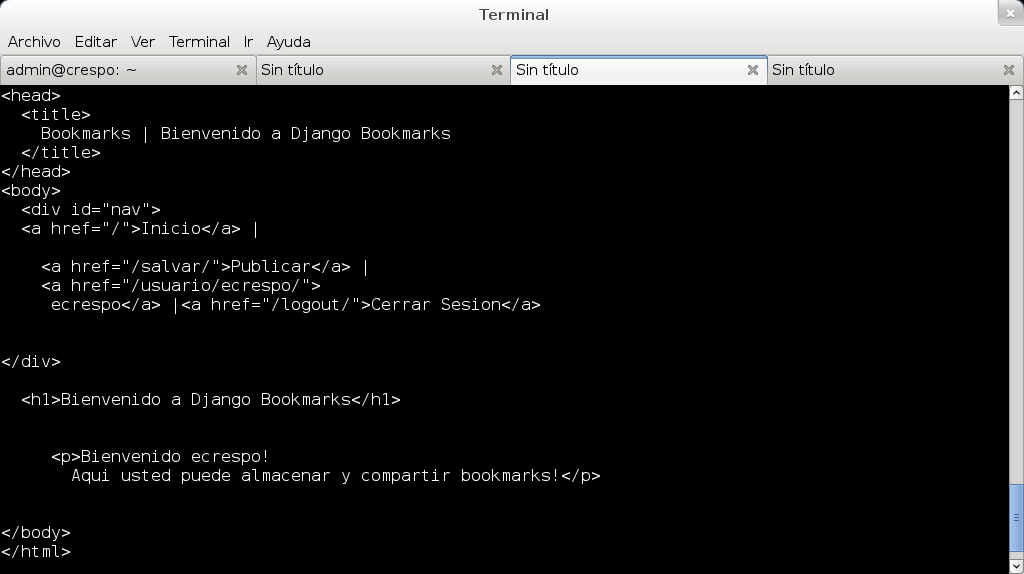
The available links are listed and the one for publishing is selected:
>>> for enlace in br.links():
...     if enlace.text == "Publicar":
...         s = br.open("%s" %enlace.absolute_url)
...         break
...     else:
...         continue
Show the page's url:
>>> print br.geturl()
http://localhost:8050/salvar/
Now we will enter the URL of a site, for example www.python.org:
First, display the form:
>>> for form in br.forms():
...     print form
...
<POST http://localhost:8050/salvar/ application/x-www-form-urlencoded
  <HiddenControl(csrfmiddlewaretoken=d3c9e6c2e06f5014647a1711ee3d4908) (readonly)>
  <TextControl(url=)>
  <TextControl(title=)>
  <TextControl(tags=)>
  <SubmitControl(<None>=save) (readonly)>>
You have to pass the url, then the url's title and tags:
>>> br.select_form(nr=0)
>>> br.form['url'] = "www.python.org"
>>> br.form['title'] = "Python"
>>> br.form['tags'] = "Python Programacion"
>>> br.submit()
<response_seek_wrapper at 0xb6efee0cL whose wrapped object = <closeable_response at 0xb6f12aacL whose fp = <socket._fileobject object at 0xb6eff86c>>>
Show the page's content after entering the data:
>>> print br.response().read()The following figure shows the result:
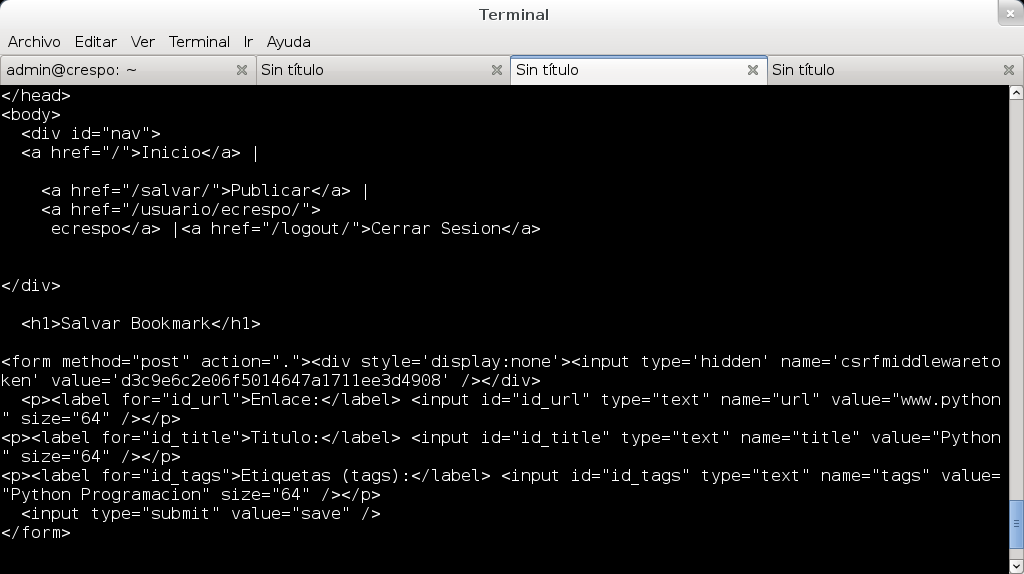
Finally, the available links are listed in order to then log the user out:
>>> for link in br.links():
...     if  link.text == "Cerrar Sesion":
...         r = br.open("%s" %link.absolute_url)
...         break
...     else:
...         continue
Show the html code of the resulting page after clicking on log out, and the figure where that code appears:
>>>print br.response().read()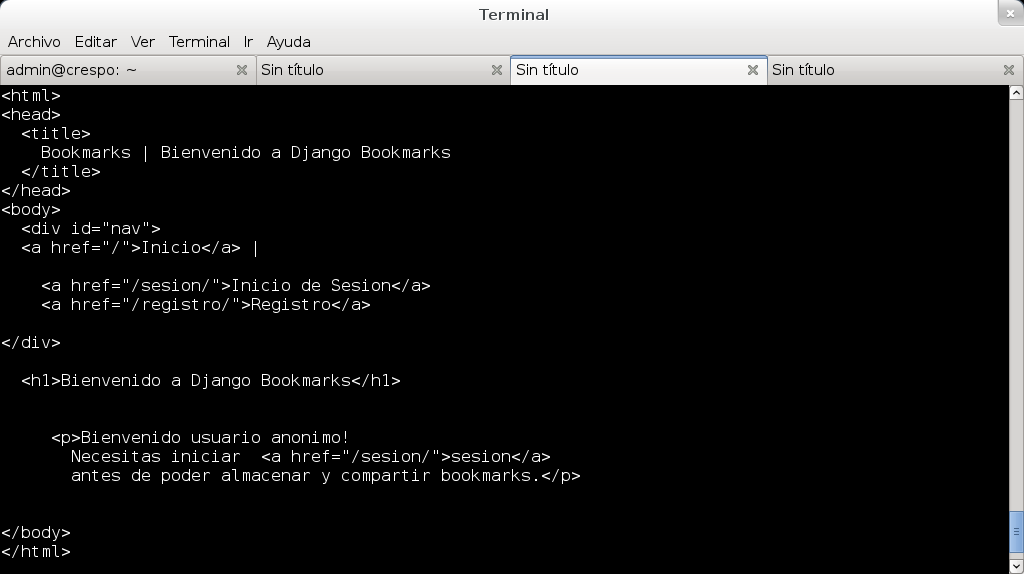
The next article about mechanize will explain the use of more complex forms than just entering data.
Make a donation! If you liked the article you can make a donation with Bitcoin (BTC) using the digital wallet of your choice to the following address: 17MtNybhdkA9GV3UNS6BTwPcuhjXoPrSzV
Or by scanning the QR code from your wallet: