Debian Squeeze is installed with the touch screen connected. In this case the screen is a touch screen connected via USB.
When the installation finishes, run the lsusb command to see how the screen is detected:
lsusb
Bus 004 Device 002: ID 0eef:0001 D-WAV Scientific Co., Ltd eGalax TouchScreen
It is a device from the eGalax company. Visit the eGalax page to download the drivers for Linux (broken link), the driver is eGTouch_v2.5.2107.L-x, which is the one that supports kernels newer than 2.6.24.
Install the packages needed to configure the touch screen:
You need to install xorg libraries and the kernel headers that Squeeze has.
apt-get install xserver-xorg-input-evtouch xinput xserver-xorg-dev xserver-xorg-input-evdev-dev xserver-xorg-input-evdev xserver-xorg-input-synaptics-dev linux-headers-2.6.32-5-686Once the compressed file is on the machine, decompress it:
tar -xvzf eGTouch_v2.5.2107.L-x.tar.gz
Enter the driver directory:
cd eGTouch_v2.5.2107.L-x/Now run the setup.sh script, which helps with the driver installation process:
sudo sh setup.sh

A continuación se sigue las instrucciones del instalador:
Se resaltará la parte de las preguntas del instalador.

(*) Driver installer for touch controller
(*) Script Version = 1.04.2013

(I) Check user permission: root, you are the supervisor.
(I) Platform application binary interface = i686
(W) X server detected.

Declaration and Disclaimer
The programs, including but not limited to software and/or firmware
(hereinafter referred to "Programs" or "PROGRAMS", are owned by
eGalax_eMPIA Technology Inc. (hereinafter referred to EETI) and are
compiled from EETI Source code. EETI hereby grants to licensee a
personal, non-exclusive, non-transferable license to copy, use and
create derivative works of Programs for the sole purpose in
conjunction with an EETI Product, including but not limited to
integrated circuit and/or controller. Any reproduction, copies,
modification, translation, compilation, application, or representation
of Programs except as specified above is prohibited without the
express written permission by EETI.

Disclaimer: EETI MAKES NO WARRANTY OF ANY KIND, EXPRESS OR IMPLIED,
WITH REGARD TO PROGRAMS, INCLUDING, BUT NOT LIMITED TO, THE IMPLIED
WARRANTIES OF MERCHANTABILITY AND FITNESS FOR A PARTICULAR PURPOSE.
EETI reserves the right to make changes without further notice to the
Programs described herein. Licensee agrees that EETI does not assume
any liability, damages or costs, including but not limited to attorney
fees, arising out from Programs themselves or those arising out from
the application or combination Programs into other products or
circuit. The use or the inclusion of EETI's Programs implies that the
Licensee assumes all risk of such use and in doing so indemnifies EETI
against all charges, including but not limited to any claims to
infringement of any third party's intellectual property right.

Do you agree with above patent declaration?
 [Y] Yes, I agree.  [N] No, I don't agree.
Y

(Q) Which interface controller do you use?
(I) [1] RS232 [2] USB [3] PS2 : 2
(I) Please confirm the touch controller is linked with your device.
Press [Enter] key to continue..........

(I) Found /etc/rc.local file.
(I) Found a HID compliant touch controller.
(I) X.Org X server 1.7.7
(I) X verion is 1.7.6 upwards
(I) Found uinput.ko in modules.
(I) Attach uinput at boot.
(I) Add uinput module into /etc/modules file.
(I) Place eGTouch driver archive to /usr/local/eGTouch32withX.
(I) Create eGTouch daemon shortcut in /usr/bin.
(I) Create eGTouchU tool shortcut in /usr/bin.
(I) Create eCalib tool shortcut in /usr/bin.
(I) Append eGTouch daemon execution into /etc/rc.local.

(Q) How many controllers do you want to plug-in to system? [1-10]
(I) Default [1]:

(I) Device Nums is set to 1
(I) Copy udev rule: 52-egalax-virtual.conf to /usr/share/X11/xorg.conf.d.
(I) Create eGTouchU shortcut in application list.

(I) Driver installation completed. Setup version 1.04.2013.
(I) Please reboot the system.
--------------------------------------------------------------------
All that is left is to reboot the machine.
Now comes the touch configuration process, running the eGTouchU command from the console:
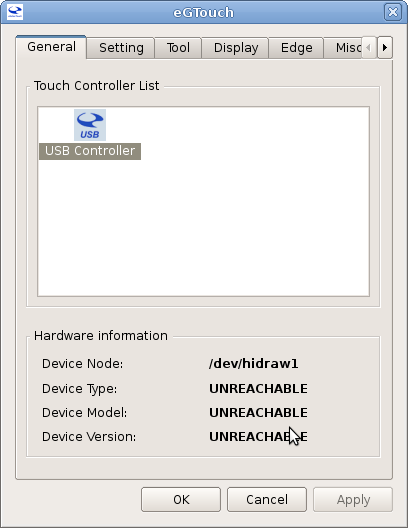
eGTouchU This displays a graphical tool that lets you configure and calibrate the touch screen:
The figure shows the General tab, where the USB controller should appear.
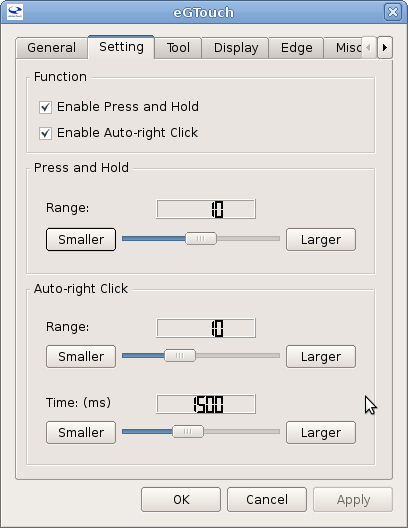
The Setting tab is left as it comes preconfigured:
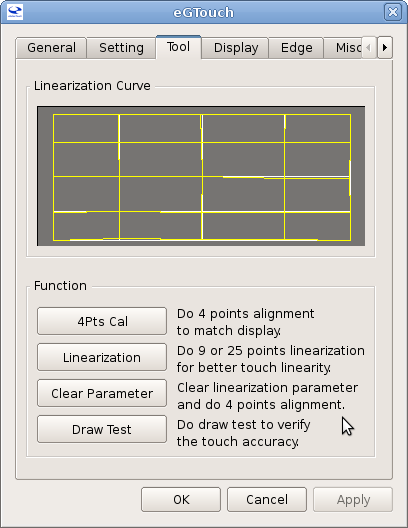
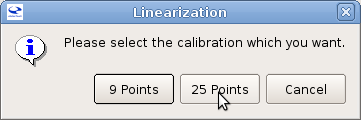
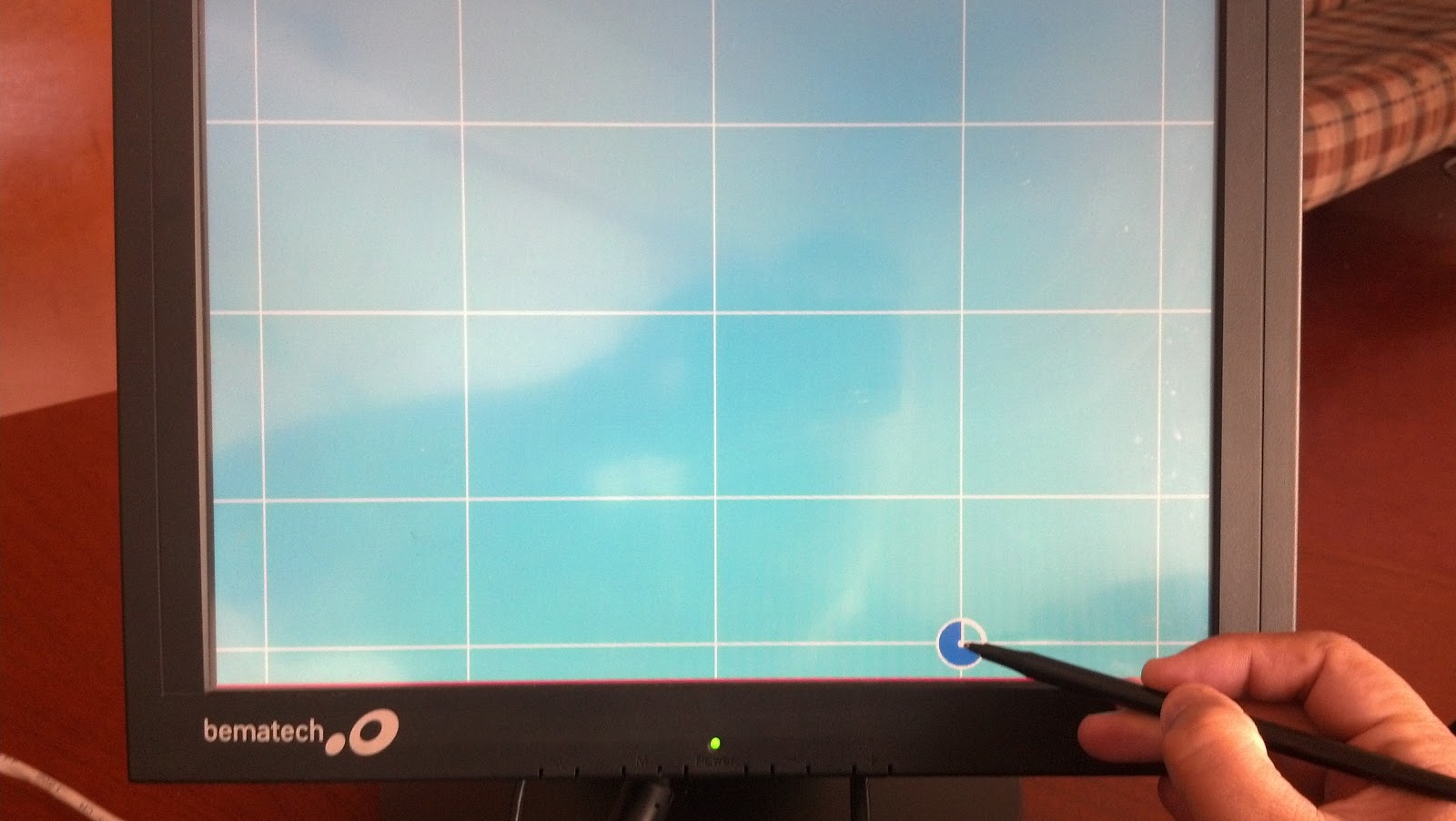
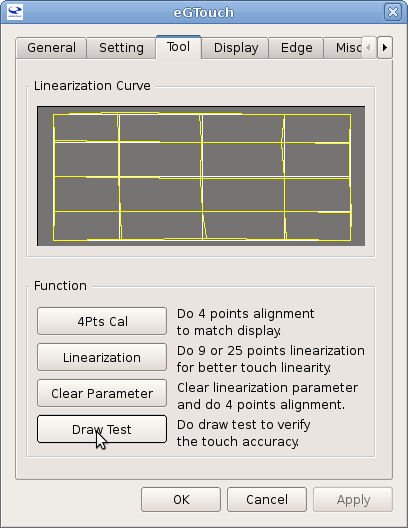
The Tool tab is the one that lets you calibrate the touch screen; select the Linearization function with 25 calibration points:
The following figure shows the screen while it is being calibrated:
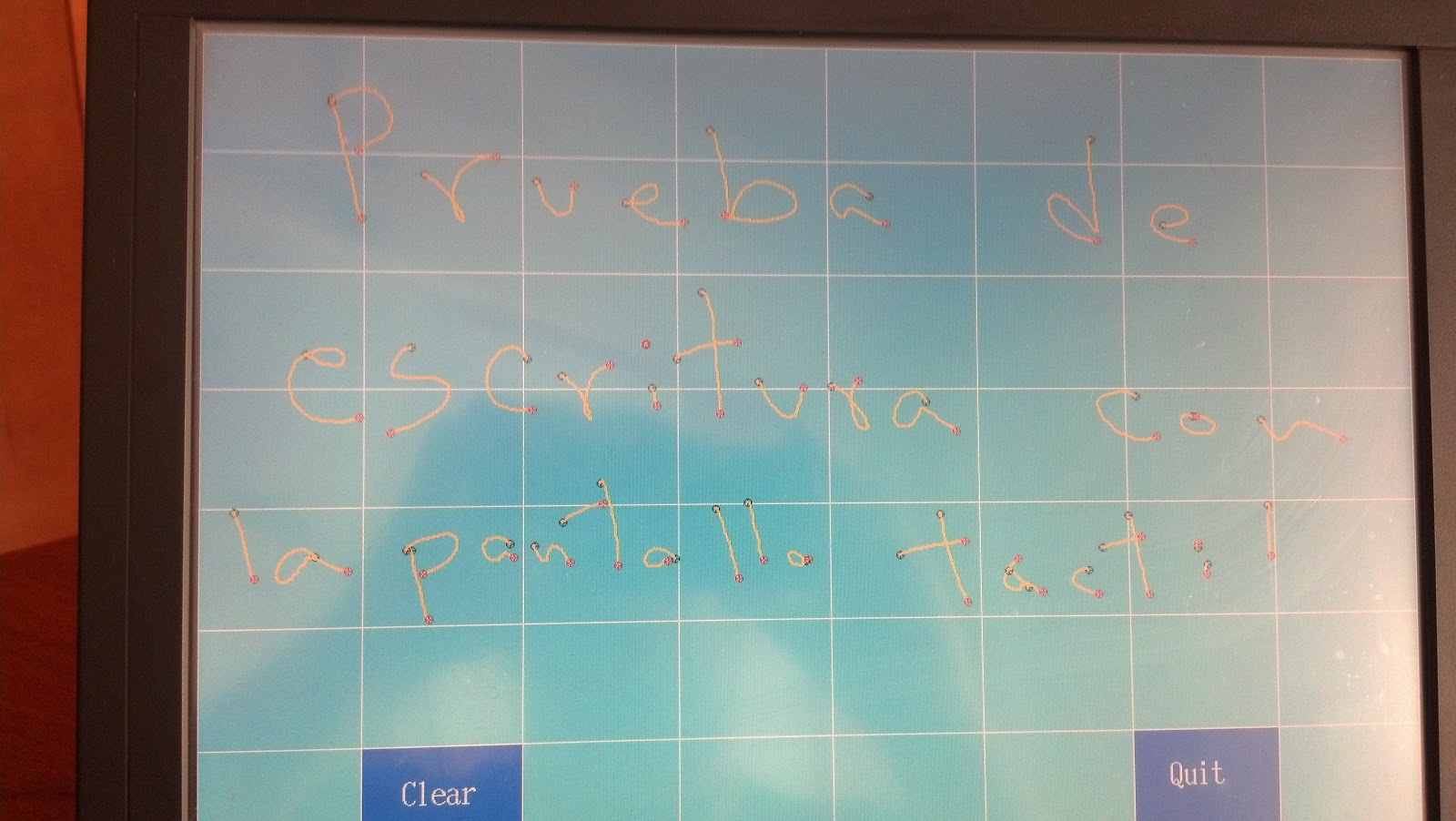
Now select the drawing test to verify that the touch screen works correctly:
The figure shows the screen working in the drawing test:
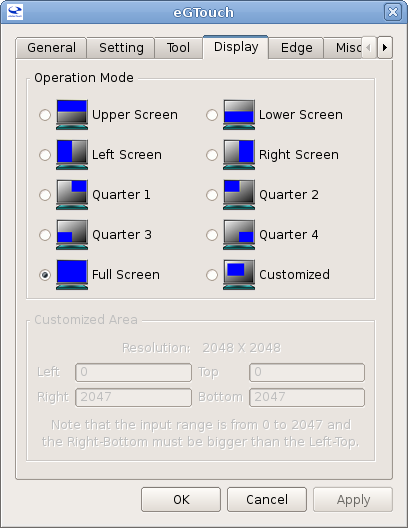
In the Display tab, select full screen mode:
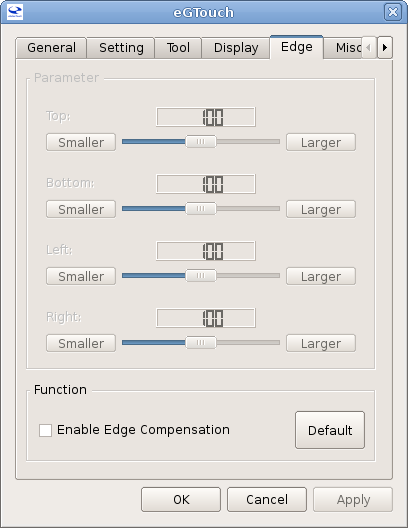
No changes are made in the Edge tab:
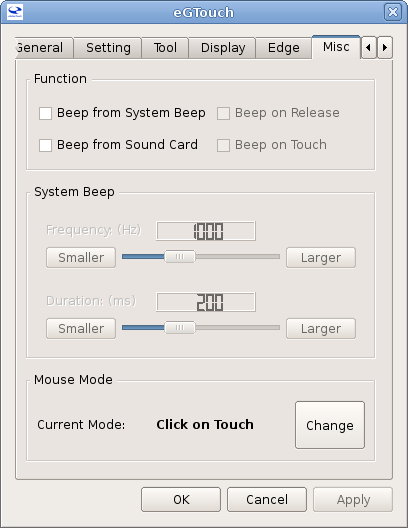
In the Misc tab, only the Mouse Mode is changed to Click on Touch:
After this you can apply the changes and reboot the machine. With this the touch screen is up and running.
Make a donation! If you liked the article you can make a donation with Bitcoin (BTC) using the digital wallet of your choice to the following address: 17MtNybhdkA9GV3UNS6BTwPcuhjXoPrSzV
Or by scanning the QR code from your wallet: